Answer Engine Insights
Last updated: April 19, 2026
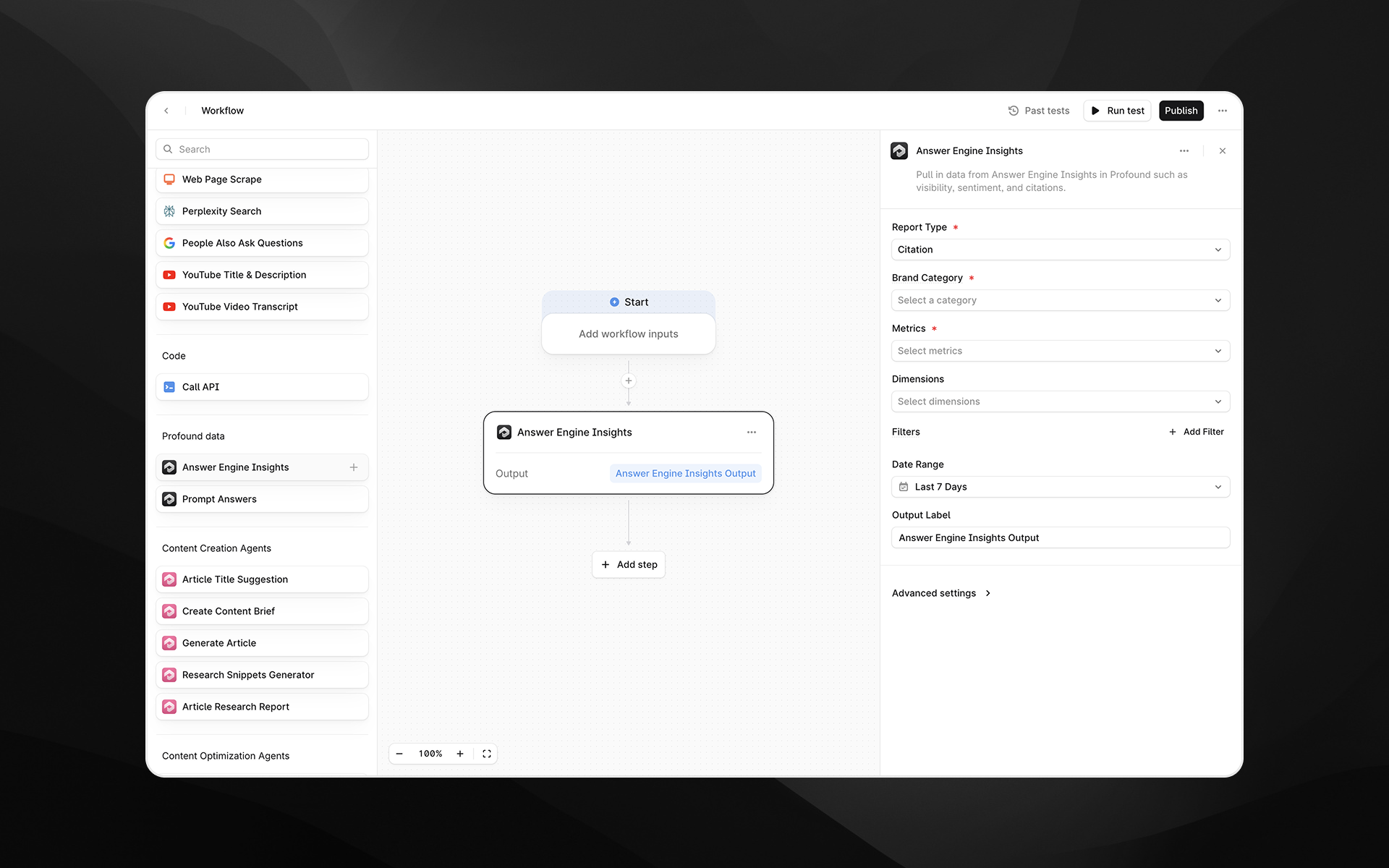
The Answer Engine Insights node pulls structured data from your Profound account directly into an Agent. Use this step when you want to analyze visibility, sentiment, and citations for your brand across AI answers, then pass that data into downstream steps such as LLM analysis, reporting, or alerts.
You can configure exactly which metrics, dimensions, filters, and date ranges to use, making this node a flexible way to operationalize Profound data.
See this document for additional instructions on adding this node to an Agent, and this document for a full list of available nodes.
When to use this node
Use Answer Engine Insights for tasks such as:
Monitoring how often your brand is mentioned and cited in AI answers
Comparing visibility or sentiment across regions, topics, or models
Building automated reports on share of voice over time
Triggering Agents when visibility drops or sentiment changes
Feeding brand performance data into LLM steps for narrative summaries or insight generation
Node configuration
Selecting the Answer Engine Insights node opens its configuration panel on the right side of the Agent Builder.
Report Type (required)
Choose which type of insight you want to retrieve:
Visibility – Measure how often your brand appears in AI answers and its share of voice.
Citation – Focus on citations and mentions (e.g., how often your brand is cited, where, and by which models).
Sentiment – Analyze positive, negative, or neutral sentiment toward your brand in AI answers. Sentiment data is generated from sentiment prompts, which are automatically created by Profound based on your tracked topics and follow a formulaic format (e.g., "Evaluate [your brand] on [topic]"). These prompts are always branded and run for both your company and competitors (in Prompts tab, toggle to "Sentiment"). Results appear in the Sentiment tab (not the Prompts tab).
The options available in other drop downs (Metrics, Dimensions, Filters) may vary based on the selected report type.
Note: Sentiment prompts are separate from visibility prompts and count toward your total prompt limit. They can be edited, customized, or deleted in your Profound account if you prefer to allocate that prompt budget elsewhere. Without sentiment prompts, the Sentiment tab in Answer Engine Insights will not be populated.
Brand Category (required)
Select the Category you want to analyze. This corresponds to the categories configured in your Profound account (for example, specific product verticals or brand groupings).
You can select a single category per node. To compare multiple categories, add multiple Answer Engine Insights steps.
Metrics (required)
Choose one or more metrics to return in the report. This is the actual data metric that is returned by the node. Available metrics depend on the selected report type, but may include values such as:
(Citations) Count – Number of answers, mentions, or citations matching your configuration.
(Citations) Share of Voice – Relative presence of your brand compared to others within the selected category.
Each metric will be included in the node’s output.
Dimensions (optional)
Dimensions let you “slice” your metrics into smaller segments. When you select one or more dimensions, the system returns separate metric values for every unique combination of those dimensions.
Example dimensions include:
Date
Region
Topic
Asset Name
Tag
Example
If your metric is Visibility Score and you choose Region and Date as dimensions, the output will include one Visibility Score value per region per day. For instance:
[
{
"metrics": [6.79033503559518],
"dimensions": ["2025-12-09","United States"]
},
{
"metrics": [6.780276789866595],
"dimensions": ["2025-12-08","United States"]
},
{
"metrics": [3.63023942039234],
"dimensions": ["2025-12-08","Argentina"]
},
{
"metrics": [4.92039201029494],
"dimensions": ["2025-12-09","Argentina"]
}
]
This allows you to answer questions such as:
Share of voice by date
Count by region
Sentiment by model
If you do not select any dimensions, the result is a single aggregated value for each metric across the entire configuration.
Filters (optional)
Use filters to narrow the dataset to specific entities or attributes. Click Add Filter to configure:
Field – The field you want to filter on, such as:
Region ID
Model ID
Topic ID
Tag ID
Hostname
Path
URL
Root Domain
Prompt Type
Operator – For example, is or other comparison operators (depending on the field).
Value – The value to match, such as a region UUID or hostname. You can:
Paste a static value, or
Insert a value dynamically from earlier Agent steps by typing /
Multiple filters can be added to refine the dataset further (for example, a specific model in a specific region).
When you filter on a field, you must also include that field as a dimension.
Date Range (required)
Specify the time window to query. You can select relative ranges (e.g., Last 7 Days) or configure other options depending on your Profound setup.
The node will return data only for answers that fall within this range.
Output Label (required)
Provide a descriptive label for the node’s result. This becomes the variable name used in downstream steps.
Examples:
aei_citation_reportvisibility_scoresentiment_themes
Advanced settings
Expand Advanced settings to control additional parameters.
Limit
Set the maximum number of rows returned by the query. This is particularly useful when you:
Only need a sample or top N results
Want to keep downstream processing lightweight
For example, set 10 to return the top 10 rows based on your selected metrics and dimensions.
Output
The Answer Engine Insights node returns a structured result containing:
The selected metrics
Any dimensions used for grouping
Values constrained by your filters and date range
The output can be consumed by:
Prompt LLM nodes (for narrative summaries, recommendations, or anomaly detection)
Additional transformation steps
Reporting or alerting Agents
Example usage
1. Monitor brand visibility by region
Add an Answer Engine Insights node.
Set Report Type to Visibility.
Choose the relevant Brand Category.
Select Share of Voice under Metrics.
Choose Asset and Region and Date as Dimensions.
Set Date Range to Last 7 Days.
Filter Asset name to your asset name
Optionally, set Limit in Advanced settings to control the number of rows.
Use a Prompt LLM step to summarize regional performance:
Summarize the following visibility data by region and highlight any notable changes or outliers:

{{visibility_insights}}
2. Analyze sentiment by model
Add an Answer Engine Insights node.
Set Report Type to Sentiment.
Choose your Brand Category.
Select a sentiment-related Metric (e.g., counts or ratios by sentiment).
Add Model and Asset as a Dimension.
Filter Asset name to your asset name
Optionally, filter on Region ID to narrow the analysis.
Use the output in an LLM step to generate a narrative summary for stakeholders.
3. Pull top citation domains
Set Report Type to Citation.
Select Count as the Metric.
Use Hostname as a Dimension.
Set Limit (e.g., 10) to retrieve the top citing hosts.
Feed the output into downstream steps for outreach planning or competitive research.
Best practices
Start broad (few filters, key metrics) and refine as needed to avoid overly narrow results.
Use Dimensions for the breakdowns you care most about (e.g., region, model, topic) and keep the set small for easier downstream interpretation.
Use Limit to keep responses manageable, especially when you plan to pass data into LLM steps.
Use clear, descriptive Output Labels so your Agents remain understandable as they grow.
Troubleshooting
The node returns no data
Confirm that the selected Brand Category, Date Range, and Filters match data you expect in Profound.
Try removing filters or expanding the date range to validate that data exists.
Results are too granular or long
Reduce the number of Dimensions.
Lower the Limit in Advanced settings.
Variables are not being applied in filters
In the filter value field, type / and select from the variable picker rather than pasting raw placeholders.