YouTube Video Transcript
Last updated: June 12, 2026
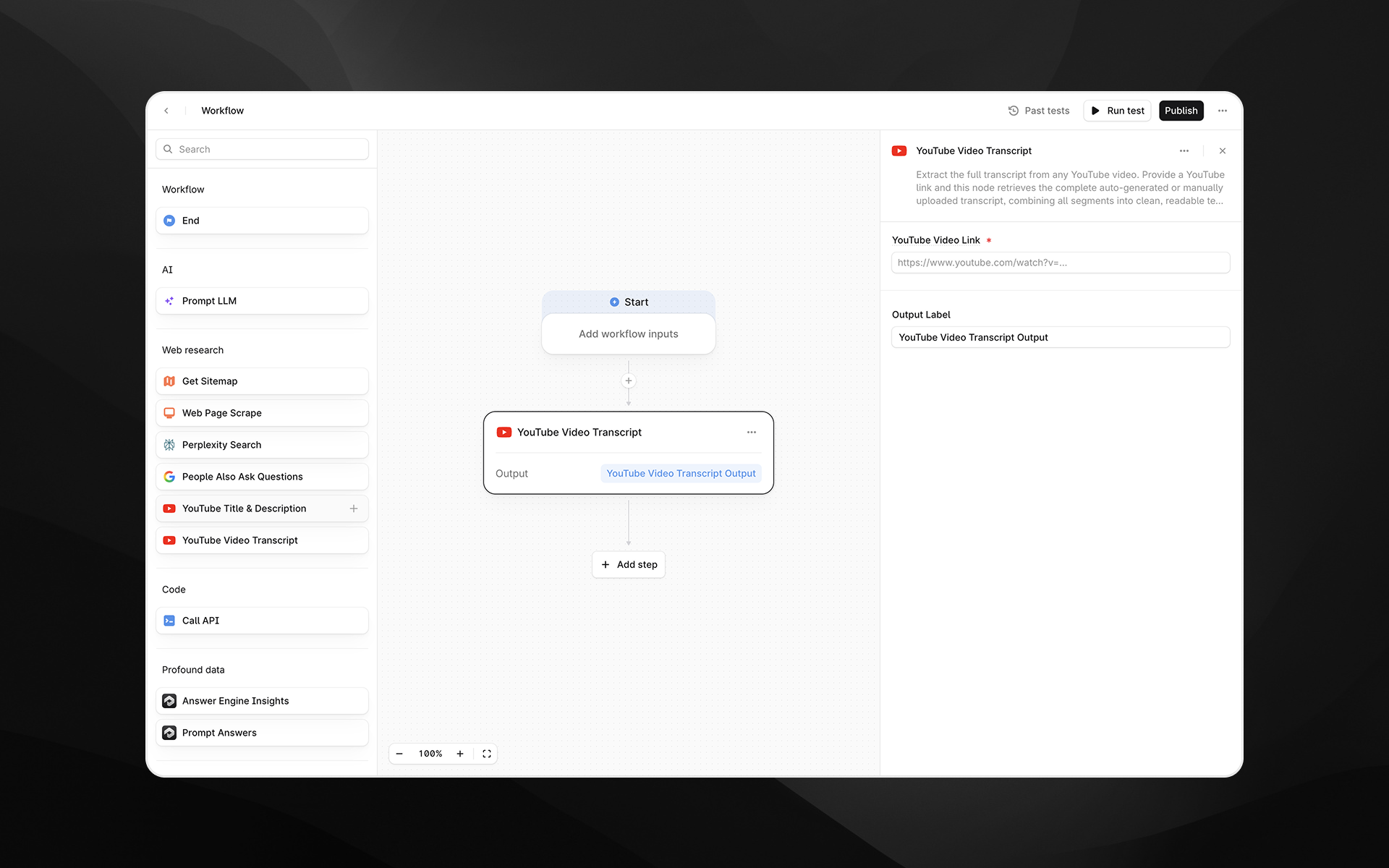
The YouTube Video Transcript node extracts the full transcript from any publicly accessible YouTube video. This includes auto-generated or manually uploaded transcripts. The node combines all transcript segments into a clean, readable text output that can be used for analysis, summarization, content extraction, or downstream LLM processing in your Agents.
Check out 📄 Getting started with Agents to learn how to add this node to an Agent.
When to use this node
Use YouTube Video Transcript for tasks such as:
Analyzing spoken content from competitor or industry videos
Creating summaries, highlights, or structured notes using an LLM
Extracting keywords, entities, or insights from long-form video content
Feeding transcript text into research, comparison, or content generation Agents
Node configuration
Selecting the YouTube Video Transcript node opens its configuration panel on the right side of the Agent Builder.
YouTube Video Link (required)
Enter the URL of the YouTube video whose transcript you want to retrieve.
You can:
Paste a direct YouTube watch URL
Insert a dynamic variable from a previous Agent step by typing
/
Supported formats include typical YouTube links:https://www.youtube.com/watch?v=VIDEO_ID
Output Label
Assign a descriptive label to the transcript output. This becomes the variable name used in downstream nodes.
Examples:
video_transcriptyt_transcripttranscript_text
Output
This node returns a single text output containing the full transcript of the video. Profound automatically:
Retrieves all transcript segments
Orders them correctly
Merges them into a continuous, readable text block
The result is ideal for use in:
Prompt LLM analysis
Summaries and content transformation
Topic extraction or semantic clustering
QA extraction or answer engine testing Agents
Example usage
1. Summarize a long YouTube video
Add a YouTube Video Transcript step with the link to the video.
Pass the transcript to a 📄 Prompt LLM step:
Summarize the following transcript into concise bullet points:

{{video_transcript.output}}
2. Extract insights for competitive analysis
Use YouTube Video Transcript to capture the full content of a competitor’s product demo.
Pass the output into a 📄 Prompt LLM step to identify messaging themes, product claims, or feature positioning.
3. Generate social content from video text
Retrieve the transcript.
Use a 📄 Prompt LLM step to generate snippets or social posts:
Create three LinkedIn post variations using insights from this transcript:

{{yt_transcript.output}}
Best practices
Ensure the video is public or unlisted; transcripts cannot be retrieved from private or restricted videos.
Auto-generated transcripts may include inaccuracies; consider post-processing with an LLM to improve clarity.
Use clear output labels, especially when extracting multiple transcripts in a single Agent.
Troubleshooting
No transcript is returned
This may occur if the video has no transcript available or is private. Try another video link or verify settings on the source video.
Transcript content looks fragmented
Profound merges segments automatically, but heavily timestamped or irregular transcripts may benefit from cleanup via a Prompt LLM step.
Variable insertion is not working
Use / inside the URL field to insert available Agent variables.