Call API
Last updated: June 12, 2026
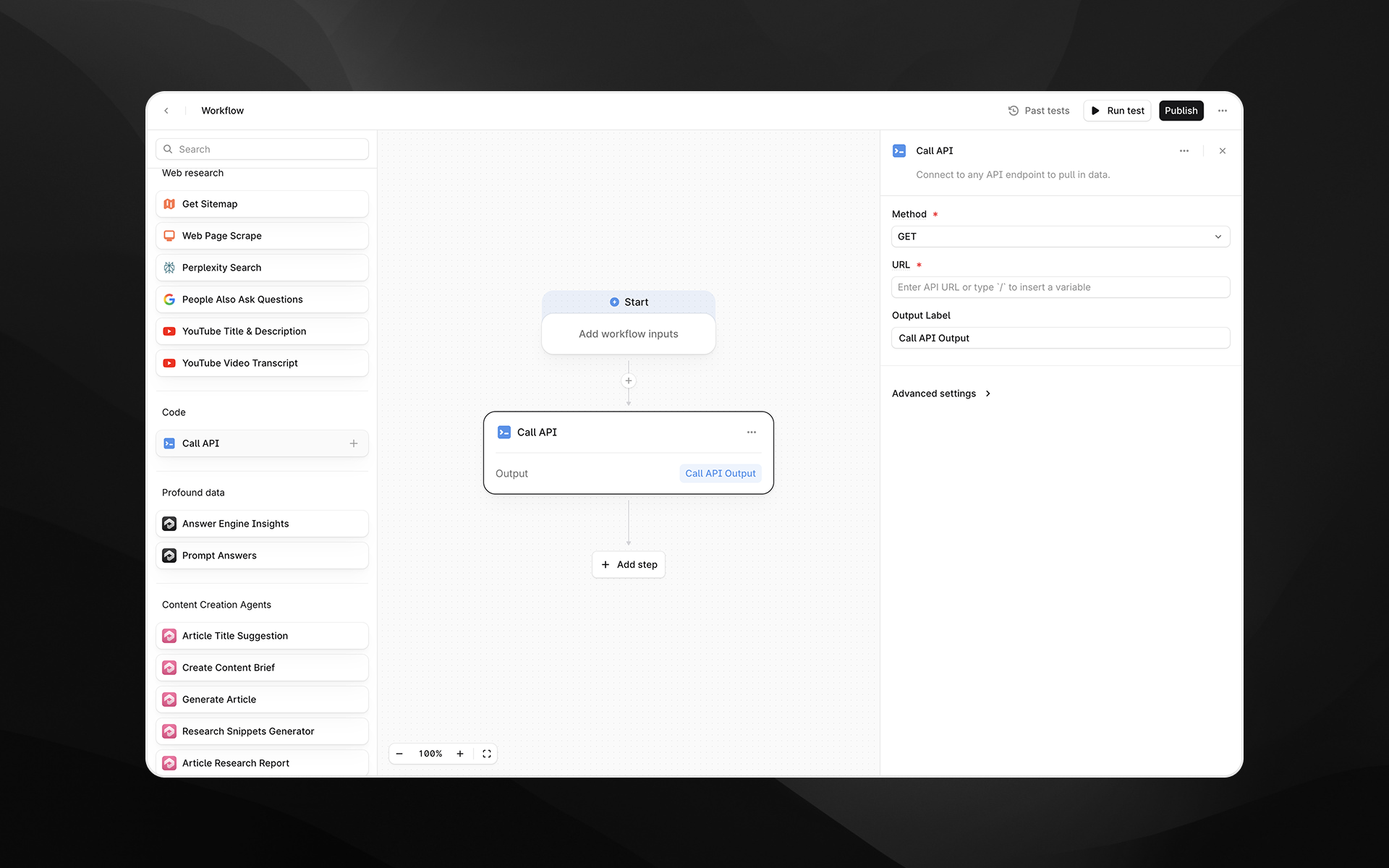
The Call API node connects your Agent to any external API endpoint. Use this step to retrieve data, trigger external services, enrich Agent inputs, or integrate with your internal systems and tools.
This node supports both GET and POST requests, optional authentication, and (for POST requests) request bodies in JSON format.
Check out 📄 Getting started with Agents to learn how to add this node to an Agent.
When to use this node
Use Call API for tasks such as:
Pulling data from third-party tools, CRMs, CMS systems, or analytics platforms
Triggering external automations or Agents
Fetching structured data for use in downstream LLM steps
Enriching Agent execution with custom business logic hosted elsewhere
Integrating Profound Agents with internal APIs or microservices
Node configuration
Selecting the Call API node opens its configuration panel on the right side of the Agent builder.
Method (required)
Choose the HTTP method for the request:
GET – Retrieve data from an API endpoint
POST – Send data to an endpoint; allows including a request body
Choose the method that matches the API you are calling.
URL (required)
Enter the full API endpoint URL.
You can:
Paste a static URL
Dynamically insert variables using
/, referencing inputs or earlier Agent steps
Examples:
https://api.example.com/users/{{user_id}}https://internal.mycompany.com/search?q={{topic}}
Additional configuration for POST requests
If the method is POST, additional fields appear.
Request Body
Enter the JSON payload to send in the request. This is required for POST requests.
Example payload:
{
  "userId": 1234
  "action": "create",
  "payload": {
    "firstName": "Jack",
    "email":"jack@example.com"
  }
}
Variables can be inserted using /.
Content Type (required for POST)
Choose the content type for the request body:
None
Application/Json
Most APIs expect application/json.
Output Label
Provide a descriptive label for the API response. This becomes the variable name that downstream nodes reference.
Examples:
api_responseuser_recordexternal_data
Advanced settings
Select Advanced settings to configure authentication for the request.
Authentication is required for APIs that are not publicly accessible.
Authentication Type (required)
Choose the authentication mechanism:
None – no authentication
Basic – username and password
Bearer – bearer token
API Key – custom API key header
Each option exposes different required fields.
Basic Authentication
Fields:
Username
Password
Bearer Authentication
Fields:
Bearer Token
API Key Authentication
Fields:
Header Name
API Key Value
Example:
Header Name:
X-API-KeyAPI Key Value:
<your_key_here>
Use the field names expected by the API you are calling.
Output
The Call API node returns the full response body from the API as text. This output can be passed into:
LLM steps for parsing, extraction, or summarization
Logic and transformation nodes
Downstream API calls
Any step requiring structured or semi-structured external data
The output may be JSON, HTML, plain text, or any content type returned by the API.
Example usage
1. Fetch user profile data
Add a Call API node with:
Method: GET
URL:
https://api.example.com/users/{{user_id}}Output Label:
user_profile
Pass {{user_profile}} into an LLM step for analysis or transformation.
2. Submit Agent data to an external service
Add a Call API node with:
Method: POST
URL:
https://hooks.example.com/eventsContent Type: Application/Json
Request Body:

{
  "transcript": "{{video_transcript}}",
  "summary": "{{summary}}"
}
Output Label:
event_response
3. Use authenticated APIs
Under Advanced settings, choose the appropriate authentication type.
Provide credentials (e.g., Bearer Token or API Key).
Use GET or POST as needed to retrieve secure data.
Best practices
Always verify the API’s expected method, headers, payload structure, and authentication requirements before configuring the node.
Use variables to dynamically build URLs or request bodies for more flexible Agents.
When sending JSON, ensure proper formatting: malformed JSON will cause the request to fail.
Keep output labels descriptive, especially when chaining multiple API calls.
Troubleshooting
The API returns an error
Check:
URL correctness
Required query parameters
Authentication credentials
JSON body structure (for POST)
The response is empty or unexpected
APIs may return HTML error pages or wrapper objects. Use a Prompt LLM step to interpret or extract relevant portions.
Variables aren’t resolving
Insert variables by typing / and selecting from the variable picker.