Prompt LLM
Last updated: September 2, 2026
The Prompt LLM node allows you to generate text using a large language model (LLM). Use this step when you need an AI-generated summary, classification, rewrite, extraction, or any other transformation based on a custom prompt.
You can insert variables from previous steps into the prompt, enabling dynamic responses that adapt to your Agent’s inputs and outputs.
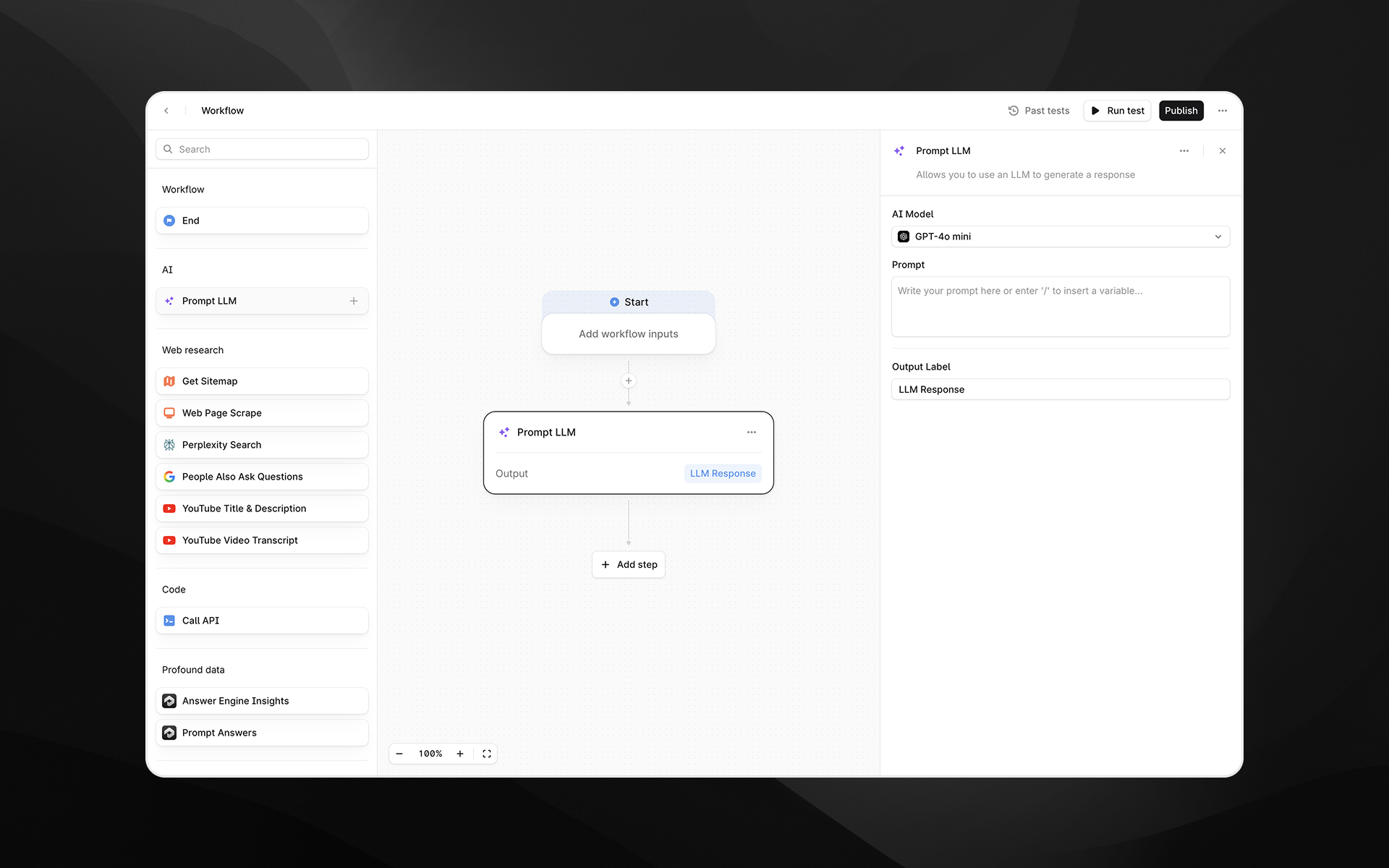
Check out 📄 Getting started with Agents to learn how to add this node to an Agent.
When to use this node
Use the Prompt LLM node for tasks such as:
Summarizing search results or scraped content
Drafting responses or structured outputs for further processing
Extracting entities or insights from text
Rewriting content for a specific audience or format
Converting unstructured data into structured fields (e.g., JSON, bullet points)
Node configuration
Selecting the Prompt LLM node opens its settings panel on the right side of the Agent builder. The node includes the following configuration fields.
AI Model
Choose which model you want to generate the output.
You can switch models at any time while designing the Agent. The selected model determines output quality, speed, and cost.
Prompt
Write the instruction you want the model to follow. This is the core input that determines how the LLM will behave.
You can:
Type plain text instructions
Reference Agent inputs
Insert variables from previous nodes by typing / to open the variable picker
Prompts can be short or detailed. For best results, provide explicit instructions about tone, structure, output format, or constraints.
Check out our 📄 Prompt LLM best practices guide for tips on writing better prompts.
Use Skill
Toggle this option to apply an existing product skill to text generation.
Use Knowledge Base
Toggle this option if you want an LLM to use the information in your Knowledge Base for the task. Once toggled, select the entire Knowledge Base from the dropdown, or select specific folders in the retrieval settings menu.
Learn more about Knowledge Bases in 📄 Knowledge Bases and Brand Kits.
Structured Output
Define a JSON schema for the LLM response: add fields, define their data types (string, number, boolean, or list), and give them concise descriptions.
This is particularly useful when working with Sheets. Learn more in the 📄 Getting started with Sheets guide.
Output Label
Enter a descriptive label for this step’s output. The label you provide becomes the variable name accessible in later Agent steps.
Examples:
analysis_summarybuyer_intent_scorecleaned_text
Output
The Prompt LLM node produces a single text or JSON output containing the LLM’s response. This output can be passed to downstream nodes such as:
Additional Prompt LLM steps
API calls
Profound data processing nodes
Iteration node
Example usage
Below are common examples of how the Prompt LLM node may be used in Profound Agents.
1. Summarize a scraped webpage
Add a Web Page Scrape step.
Add a Prompt LLM node.
In the prompt, reference the scraped page content:
Summarize the key themes from the following webpage content in 5 bullet points:
{{web_page_scrape.content}}
Set the Output Label to
summary.
2. Extract entities from an answer engine result
Use Profound data nodes to gather inputs.
Add a Prompt LLM step to extract structured information:
Extract the brand mentioned in this answer and return JSON:
{"brand": "<value>"}

Content: {{answer.text}}
Use the resulting JSON output in downstream conditional logic.
3. Rewrite content for a specific audience
Rewrite the following text for a B2B marketing leader, keeping it concise and professional:

{{input_text}}
Best practices
Be explicit. LLMs respond more reliably to detailed instructions.
Define expected formats. Use bullet points, JSON, tables, or specific phrasing to control output structure.
Reference only what you need. Avoid passing unnecessarily large content blocks unless required for the task.
Name outputs clearly. Good labels make Agents easier to maintain and reuse.
Troubleshooting
The output is not in the format I expected
Add explicit instructions such as:
“Reply only in JSON.”
“Provide exactly three bullet points.”
“Do not include explanations.”
Variables do not appear in the prompt
Type / while your cursor is in the Prompt field to open the variable picker.
Output seems incomplete or cut off
Try switching to a larger model, or revise the prompt to request shorter, more structured outputs.