Suggestions from Aim
Last updated: October 1, 2026
Suggestions are pieces of work that AI Marketer (Aim) recommends based on your data, such as a page that's losing citations, a publication that describes your product incorrectly, or a topic where a competitor leads in visibility.
Suggestions appear on Profound's home page (Workspace > AI Marketer), on the Projects page, and inside each Project. The Suggestions page lists all of them.
Types of Suggestions
Tasks and Projects
Aim suggests new tasks and Projects.
A task Suggestion is one piece of work: refresh a page, pitch a publication, or add prompts to a topic. A Project Suggestion is an initiative with a goal and a set of tasks.
A task can belong to a Project or run as a stand-alone chat with Aim. From a stand-alone task chat, ask Aim to start a new Project.
Learn more about Projects and tasks in 📄 About Projects.
What you see when you open a Suggestion
A task Suggestion shows:
Category: Owned, Earned, Social, or Paid.
Sources: the data Aim drew on, such as Visibility, Citations, Prompt inventory, or Web research.
Summary: what the data shows.
Suggestion: the plan and why it matters.
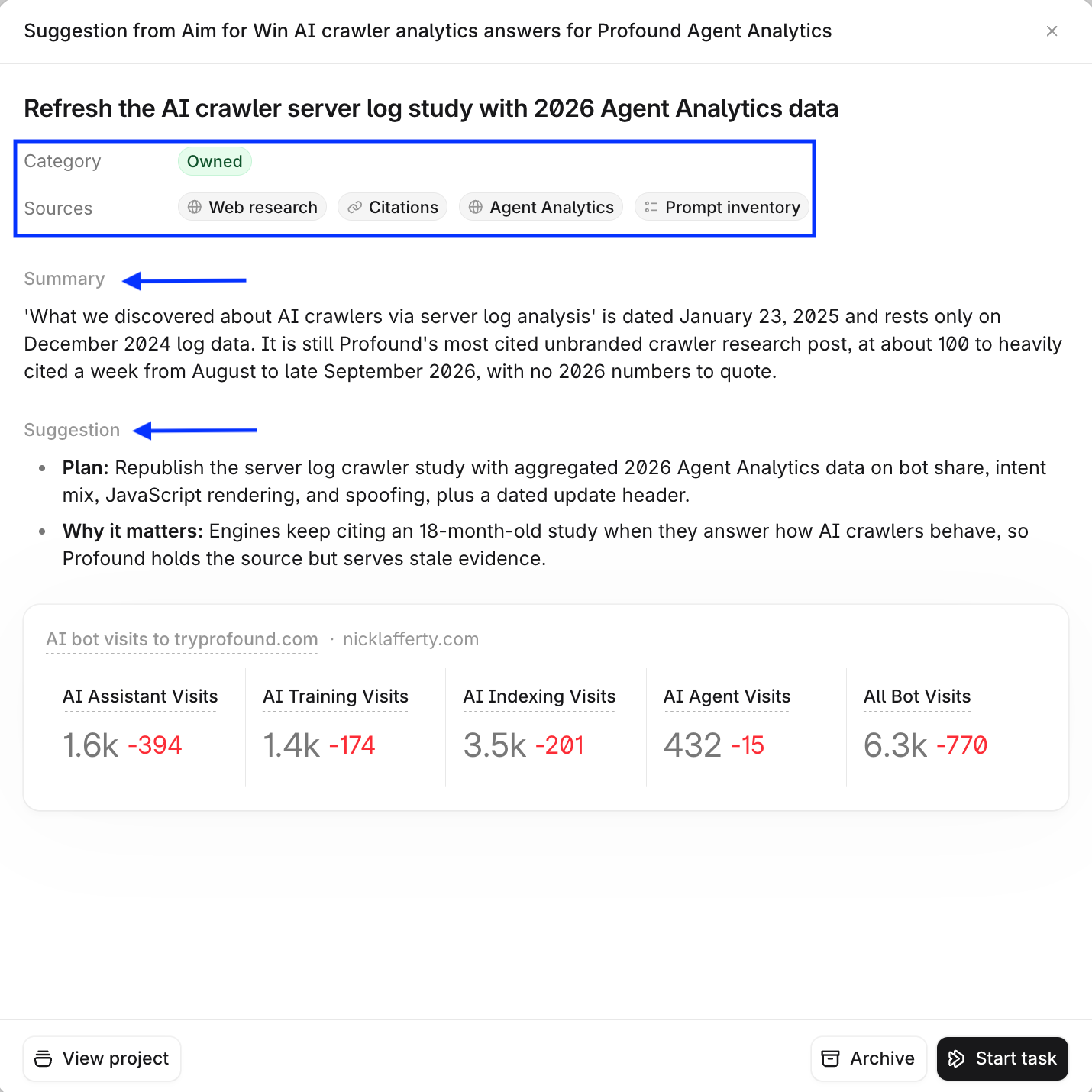
A Project Suggestion shows its description and a list of recommended tasks. Open any recommendation to see the same details.
To accept a Suggestion, select Start task or Create Project. To dismiss it, select Archive.
Where to find Suggestions
Profound's home page
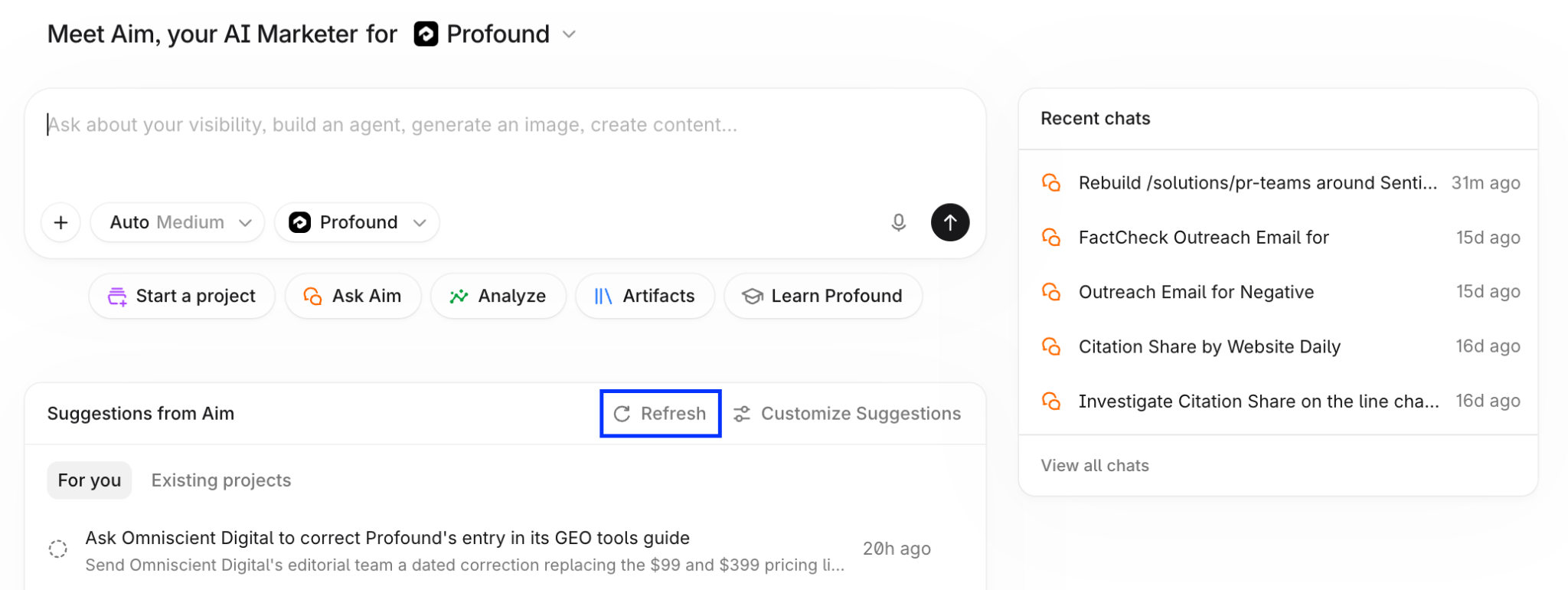
The Suggestions from Aim panel is below the Aim chat box.
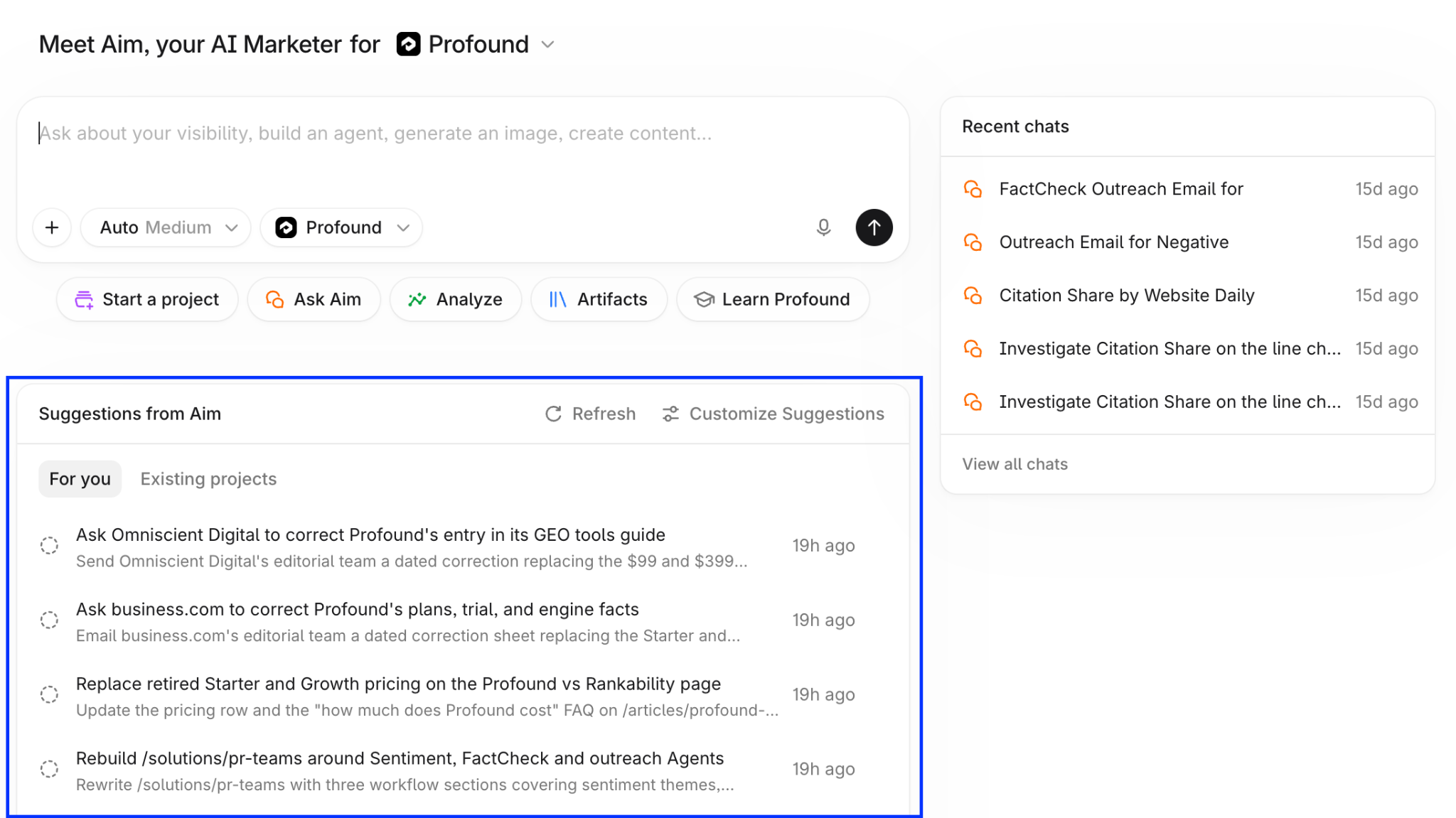
The For you tab lists tasks that aren't tied to a Project. The Existing Projects tab lists tasks for Projects you have access to, each labeled with its Project.
Select Refresh to check for new Suggestions, or select Customize Suggestions to tell Aim about your priorities.
Projects page
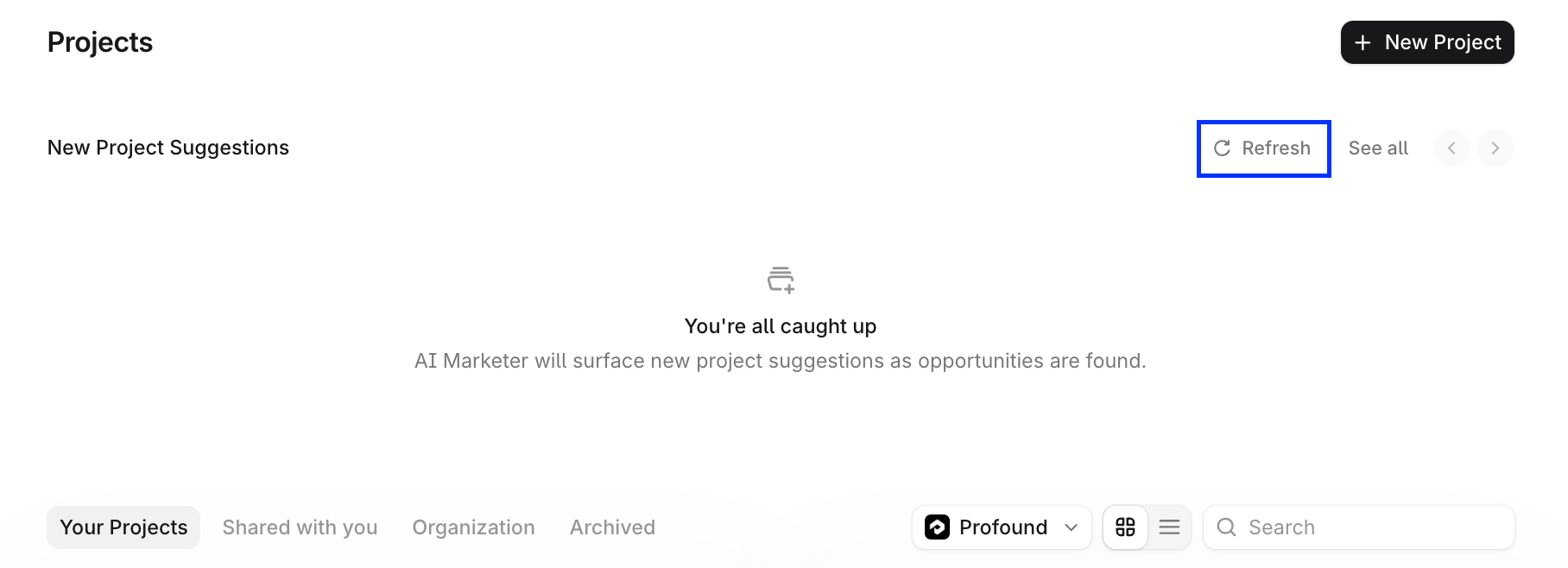
Select Projects in the left sidebar to see the New Project Suggestions section. Each card is an initiative Aim recommends for your organization, with a description and an initial set of tasks.
Inside a Project
The Suggestions for you panel in a Project's right sidebar lists tasks for that Project, based on its context and chats. Learn more in 📄 Getting started with Projects.
View all Suggestions on the Suggestions page
Wherever you find Suggestions, select See all suggestions to open a Suggestions page.
Filter and search
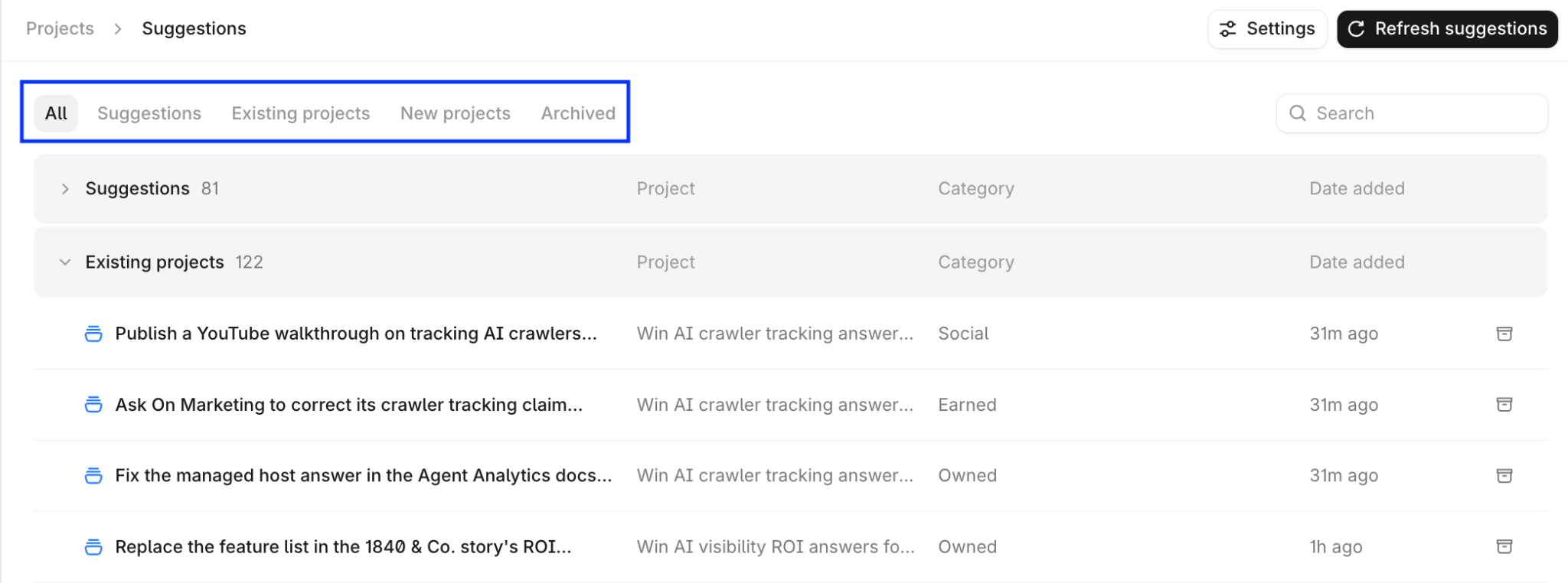
Use the tabs to narrow the list:
All: every open Suggestion.
Suggestions: stand-alone tasks that aren't tied to a Project.
Existing Projects: tasks for Projects you have access to.
New Projects: suggested new Projects.
Archived: Suggestions you or your teammates archived.
Use Search to find a Suggestion by title. Each row shows the Project the Suggestion belongs to, its category, and the date Aim added it. Select a row to open the Suggestion, or select the archive icon at the end of the row to archive it without opening it.

Refresh
Aim adds Suggestions automatically as it finds them. To check for new ones:
Select Refresh suggestions at the top of the Suggestions page.
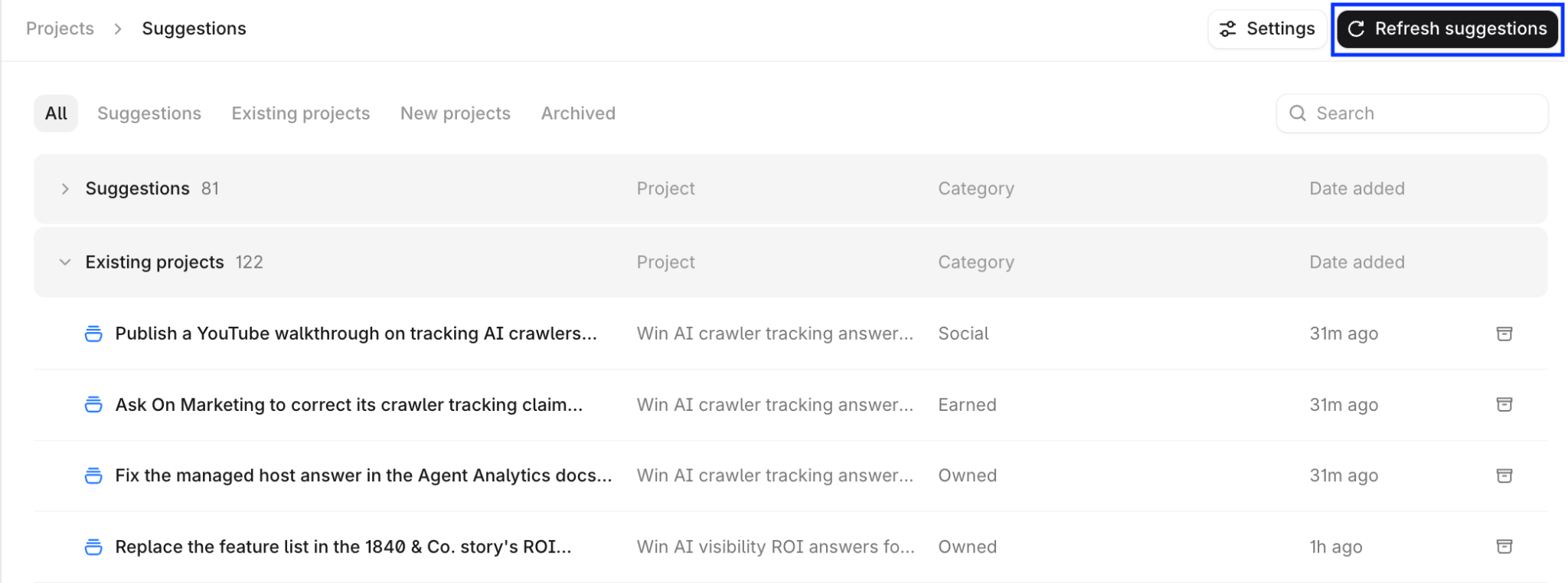
Select Refresh in Suggestions from Aim on the home page.
Select Refresh in New Project Suggestions on the Projects page.
Refreshing runs a new analysis and adds new Suggestions to the list.
Customize Suggestions
Tell Aim about your role and priorities so its Suggestions match how you work.
To open the Customize your AI Marketer drawer, select Settings at the top of the Suggestions page, or select Customize Suggestions in Suggestions from Aim on the home page.
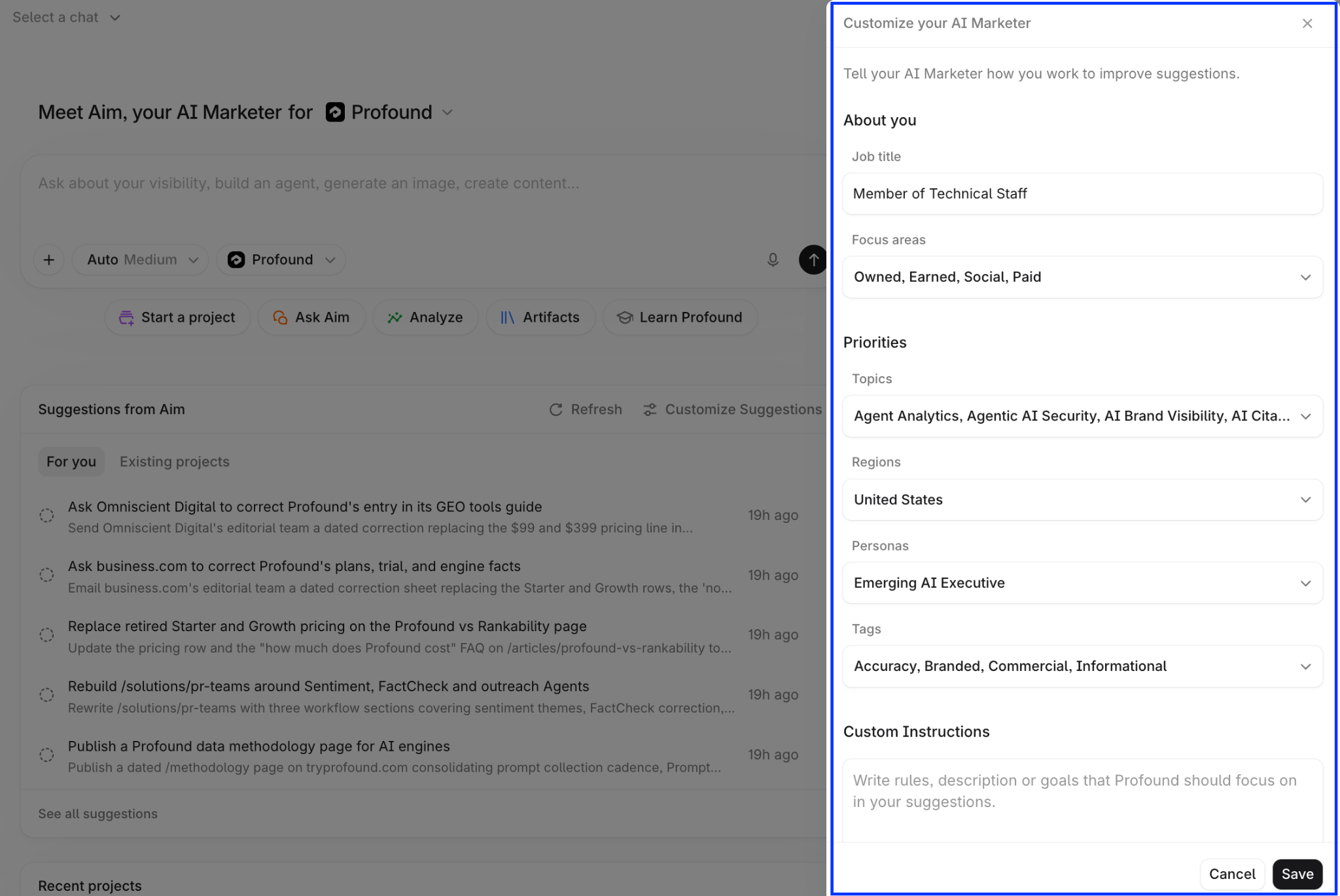
Under About you, enter your Job title and choose your Focus areas: Owned (your site and content), Earned (third-party coverage), Social, Paid, or any combination. To see Suggestions across every area, leave them all selected.
Under Priorities, select the Topics, Regions, Personas, and Tags from your Profound configuration that matter most to you. Aim weights its Suggestions toward them.
Under Custom Instructions, write rules or goals in plain language, for example, "Prioritize pages that are losing citation share" or "Don't suggest Reddit or YouTube work."
Select Save, then refresh Suggestions to see the changes.
These settings apply only to you and to the brand you've selected. Your teammates set their own.