Run Agents from Sheets
Last updated: June 13, 2026
Profound Sheets lets you run Agent workflows across large sets of inputs simultaneously. Rather than triggering Agents one input at a time, Sheets lets you process hundreds or thousands of inputs in parallel.
Adding an Agent to a Sheet
To add an Agent to a Sheet:
Click + Add Column next to the last used column header in the header row.
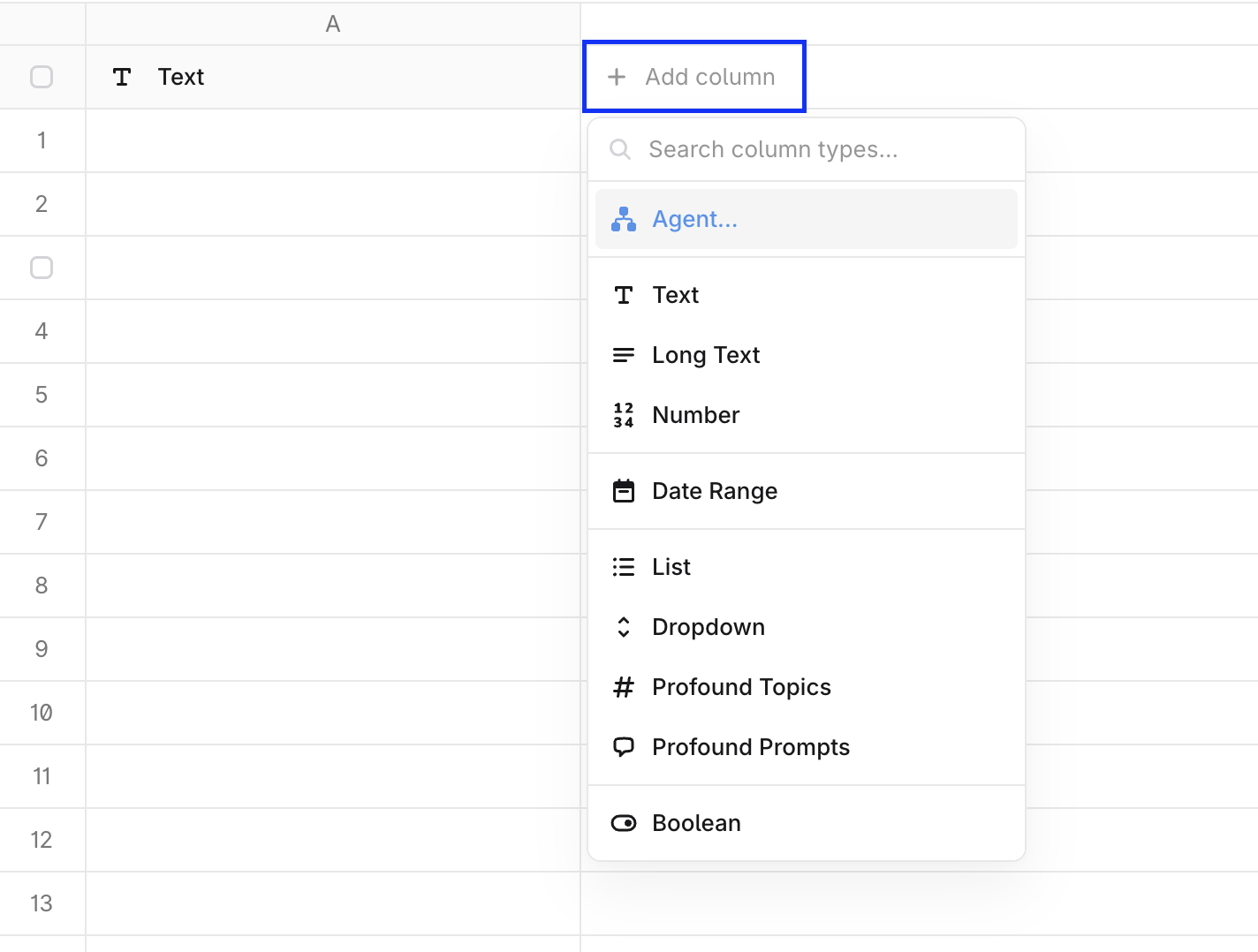
From the column type menu, select Agent.
In the Add an Agent dialog, select which Agent you want to run or create a new one.
Follow the prompts to configure Agent inputs and output columns and add them to the Sheet.
The Agent column appears in the Sheet grid alongside your other columns. Each row in that column displays a Run button, indicating the Agent is ready to process that row's input when triggered.
Run an Agent from a Sheet
Single run
To run an Agent on a single row, click the Run button within that row's Agent column cell. The Agent processes that row's input and returns its output directly in the cell once complete.
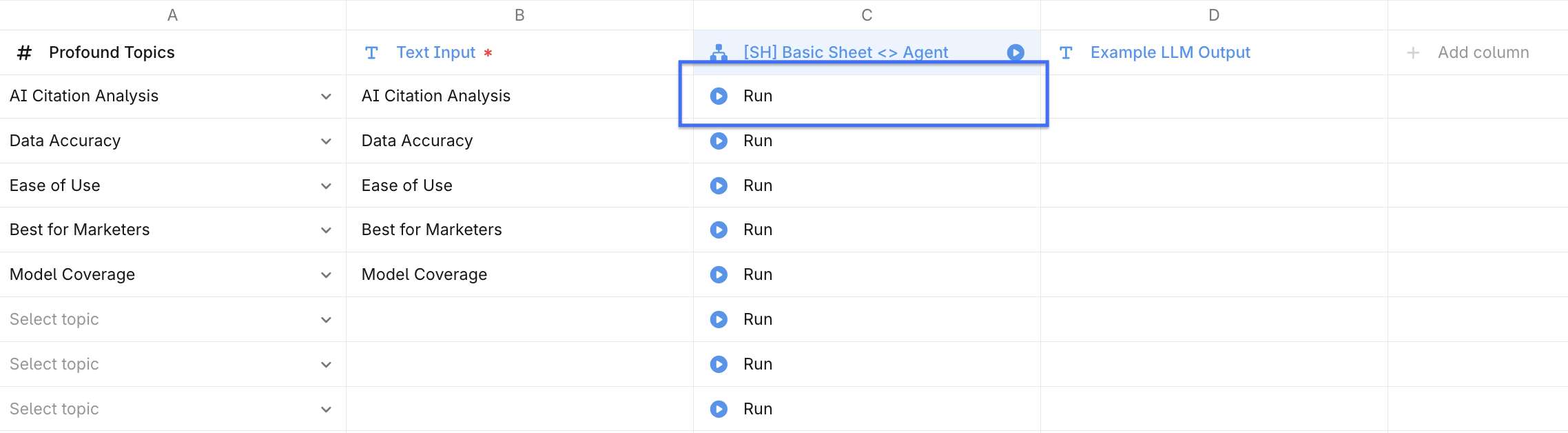
The cell status updates to show it's running, then displays a green Completed indicator when finished. Single runs are useful for testing your Agent setup on a specific input before committing to a full column run.
Bulk run
To run the Agent across all rows at once, click Run at the top of the Agent column header. This triggers the Agent for every row with input data in the Sheet simultaneously, processing all inputs in parallel.
Monitor progress as individual cells update their status in real time, moving from Run to a running state, then to Completed as each Agent finishes.
Agents only run when the necessary inputs are present. For example, if you have 100 rows but only 13 contain the necessary inputs, the Agent runs for those 13 rows only.
Handle outputs
Once an Agent run is complete, its output appears in the output cell for that row (configured in the Add an Agent dialog). Add a separate Text or Long text column alongside the Agent column to capture, label, or annotate those outputs.
To use Agent outputs downstream, reference that column's values as inputs in other columns or workflows.