Getting started with Sheets
Last updated: June 13, 2026
Profound Sheets are available to Enterprise customers. Not on an Enterprise plan yet? Request a demo to see what's possible.
Overview
Profound Sheets let you run Agent workflows across large sets of inputs simultaneously. Rather than triggering Agents one input at a time, Sheets lets you process hundreds or thousands of inputs in parallel. A Sheet row can represent a page, topic, keyword, or prompt as a unique input, and collect Agent run outputs in a single table.
Sheets supports a range of content operation workflows. Common use cases include:
AEO health reports: Pull visibility, citation, and sentiment data across all tracked topics, run competitive gap analysis on each, and generate a prioritized action list on a recurring schedule.
Bulk blog page optimization: Import a CSV of underperforming blogs and run an AEO Content Refresh Agent across all of them simultaneously.
Localization at scale: Adapt and translate content across markets in parallel, preserving AEO structure for each region's prompt patterns.
Run Agents at scale with Sheets
A Sheet is structured as a spreadsheet. Each row contains an individual input, such as a URL, keyword, or tracked prompt. Each column is either a data field, an Agent step that processes the row's input, or the output of the run.
When you run an Agent from Sheets, every row executes in parallel. Agent columns operate on their row's input data and write outputs back into the table automatically. Review, edit, and export results to your CMS from within the platform.
Agent outputs in Sheets
When an Agent column finishes processing, the output lands in the sheet table automatically. From there, review and edit results directly.
Pass the output into another Agent downstream within the same sheet, push it directly to a CMS, or edit the data within the sheet.
Create a new Sheet
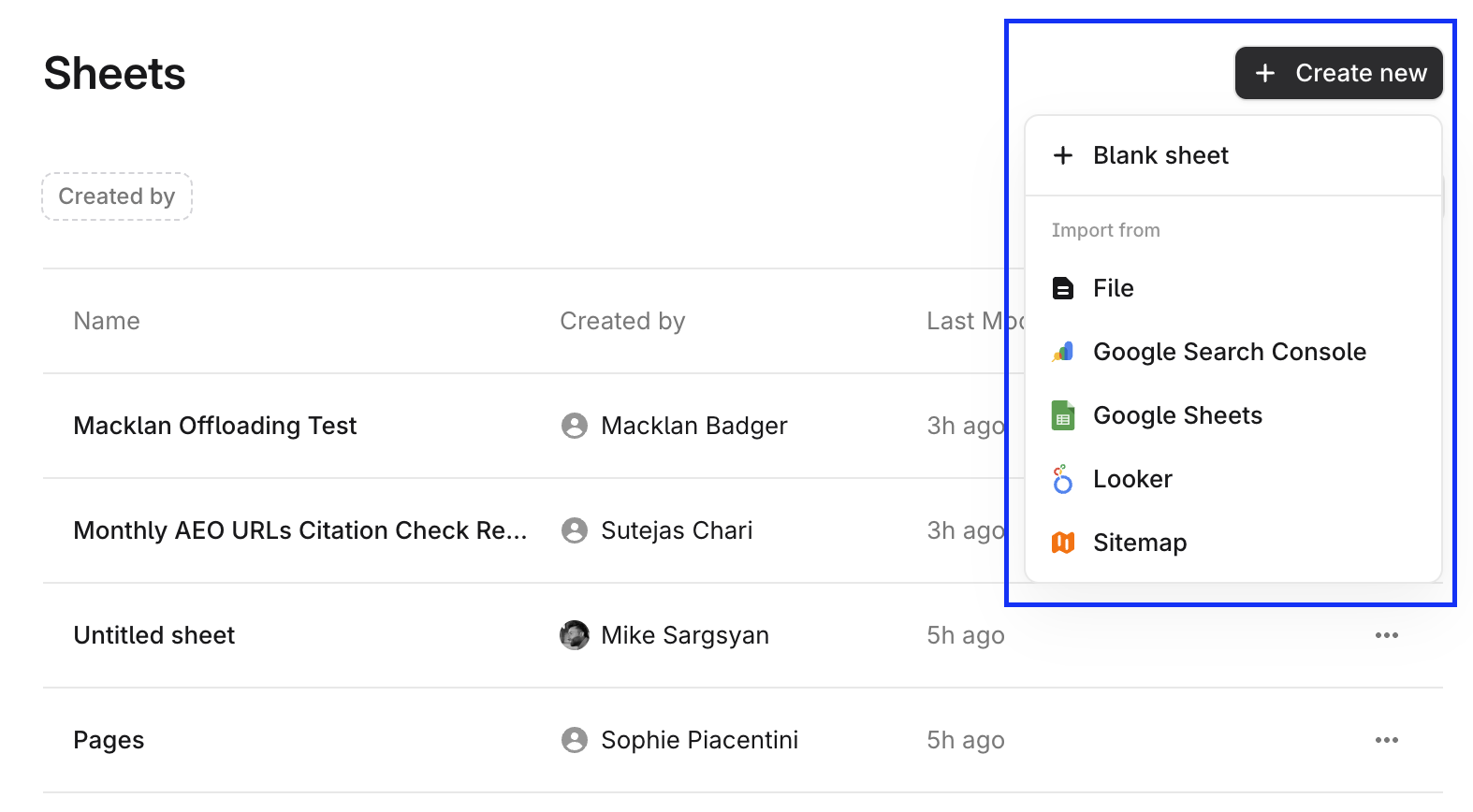
To create a new Sheet, navigate to the Sheets section and select + Create new.
Select + Blank sheet for an empty sheet, or import existing data from a file, Google Sheets, or other supported services.
Once created, the Sheet opens with a default set of empty rows and columns, as well as an Add an Agent dialog that lets you select a published Agent or create a new one to add to your Sheet.
Rename the Sheet at any time by clicking its title at the top left of the screen. Each Sheet operates independently, so you can maintain separate Sheets for different projects, workflows, or datasets.
Add and manage columns
To add a column, click + Add Column next to the last used column header in the header row. You'll be prompted to choose a column type.
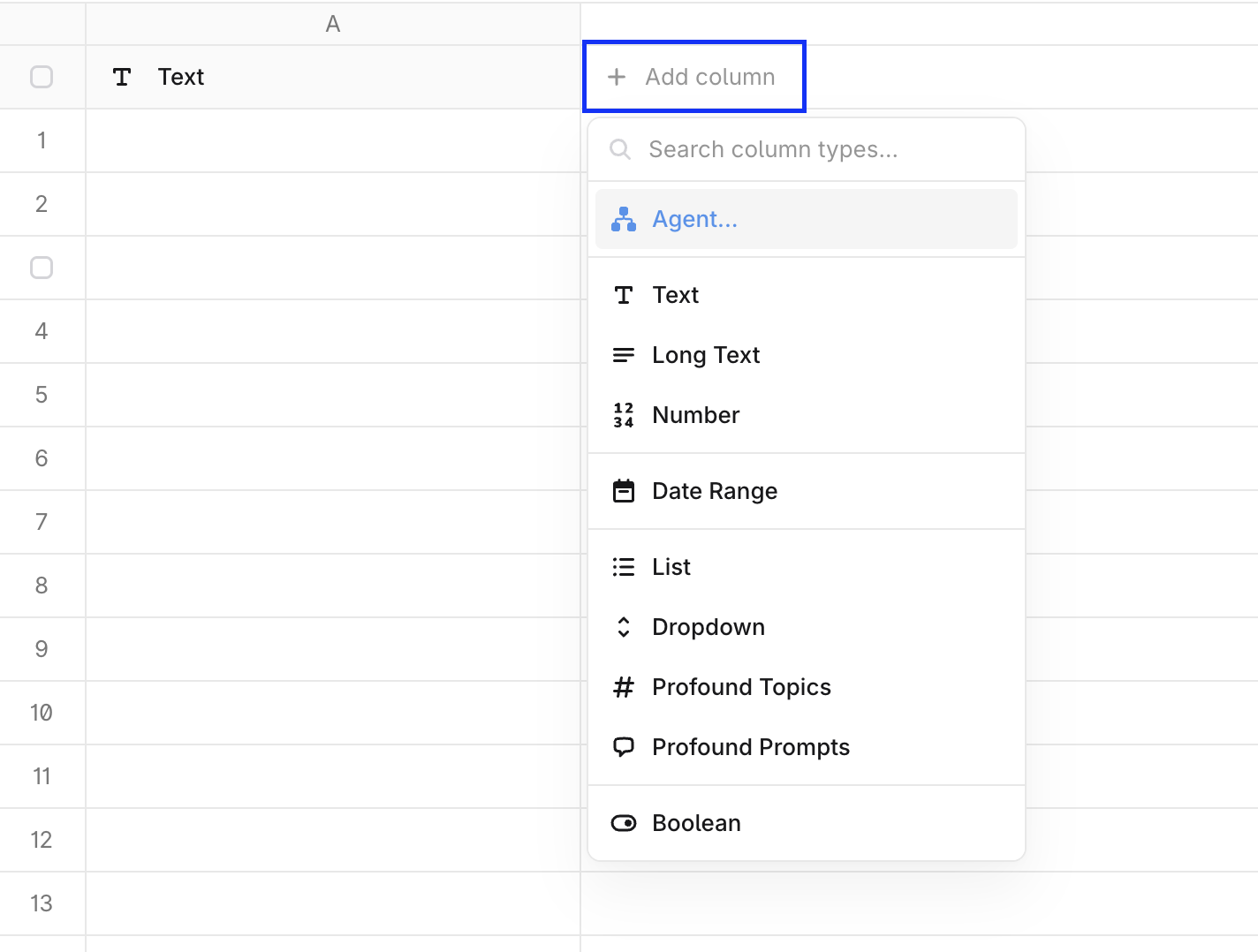
Sheets support the following column types:
Agent — Runs a Profound Agent against each row's input and returns the result. Configure Agents to use specific prompts and tools.
Text — A short text field for entering or displaying brief string values.
Long text — A larger text field suited for multi-sentence or paragraph-length content.
Number — Stores numeric values for quantitative data or calculations.
List — A collection of items, such as numbers or strings of text. Useful for iterating over a set of values.
Date range — Captures a start and end date, useful for scheduling or time-bound data.
Dropdown — Presents a fixed list of options for each cell, keeping values consistent across rows.
Profound Topics — A dropdown containing predefined topics within Profound, enabling topical categorization of rows.
Profound Prompts — A dropdown with saved prompts from your Profound prompt library.
Boolean — A true/false toggle for flagging rows or tracking binary states.
Edit or remove columns
Once you select a column type, name it and configure any type-specific settings. From a column's settings, you can also add new columns to the left or right, pin it, hide it, or rename it.
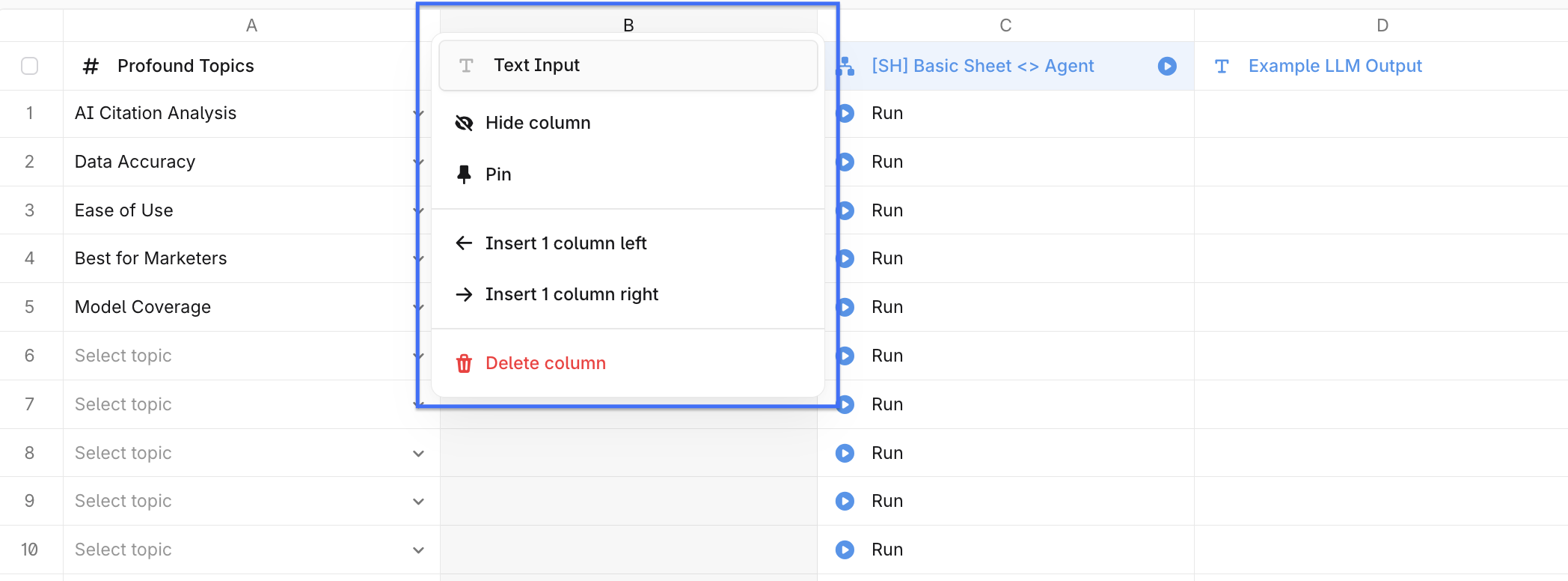
To remove a column, open its settings and select Delete Column.
If you delete an Agent column that references other columns as inputs or outputs, you'll have the option to delete only the Agent column or all associated columns.
Import and export Sheet data
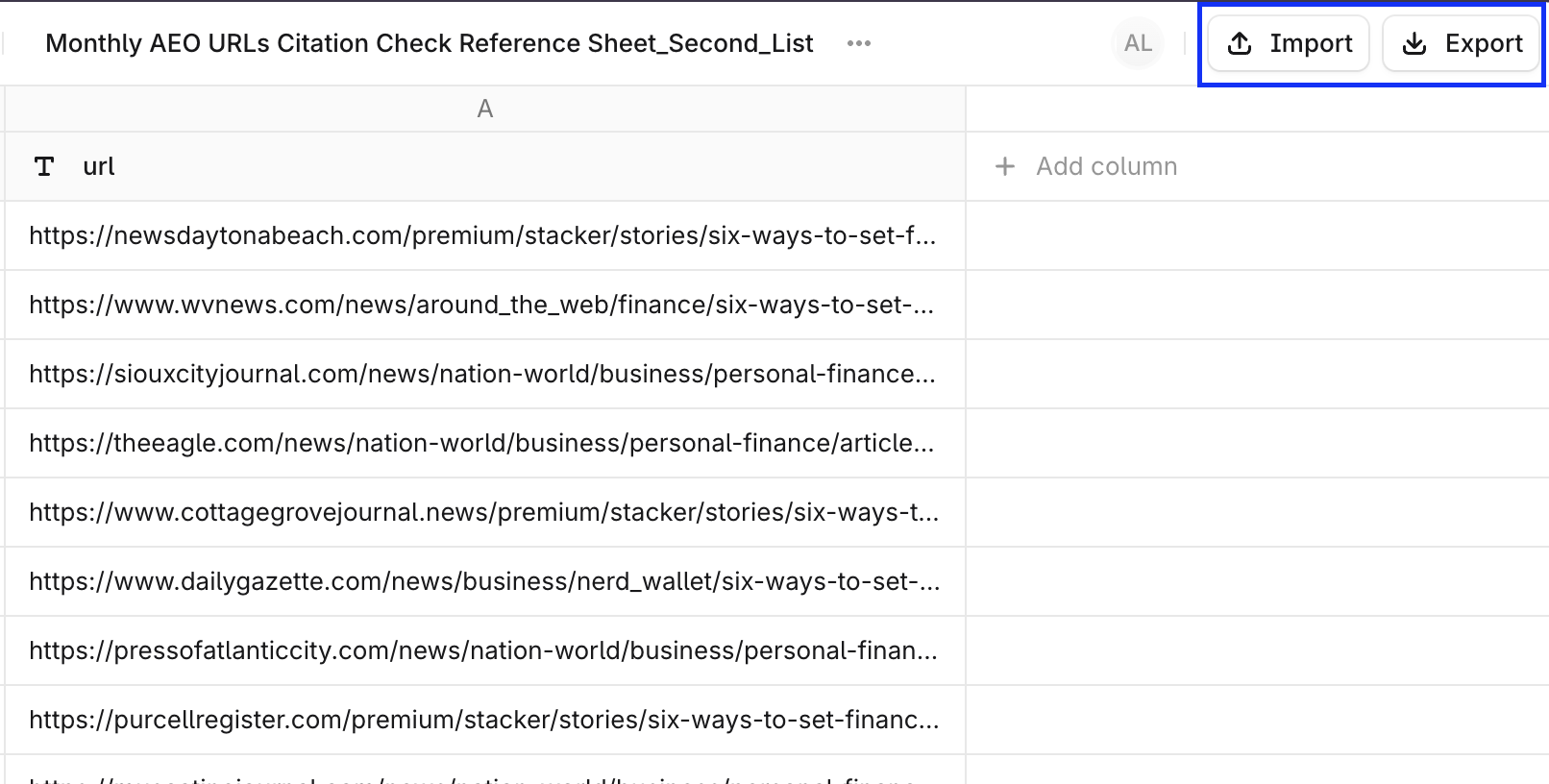
Use the Import and Export buttons at the top right of the screen to move data in and out of your Sheet.
Import
Importing lets you populate rows from a file, Google Sheets, and other supported services. It's the fastest way to load large datasets into a Sheet without manual entry.
Export Sheets
Exporting saves your current Sheet data as a specified file type. Exports preserve all column values and row content, including any completed Agent outputs, making it easy to share results or perform further analysis outside the platform.
Supported file types for export include:
Microsoft Excel (.xlsx)
OpenDocument (.ods)
PDF (.pdf)
Web Page (.html)
Comma Separated Values (.csv)
Tab Separated Values (.tsv)
Settings
The Settings button in the top toolbar provides access to sheet-level configuration options. From here, edit Sheet details, hide columns while preserving their data, or duplicate the current Sheet.