Getting started
Last updated: September 8, 2026
Activity Logs are available to users with an Admin role. No setup is required: once you open the page, your organization's event history is already there.
View or revise your team roles on the People page under the Organization section. See Add and manage team members in Profound.
Here's how to review and export your organization's activity for the first time.
Step 1: Open Activity Logs
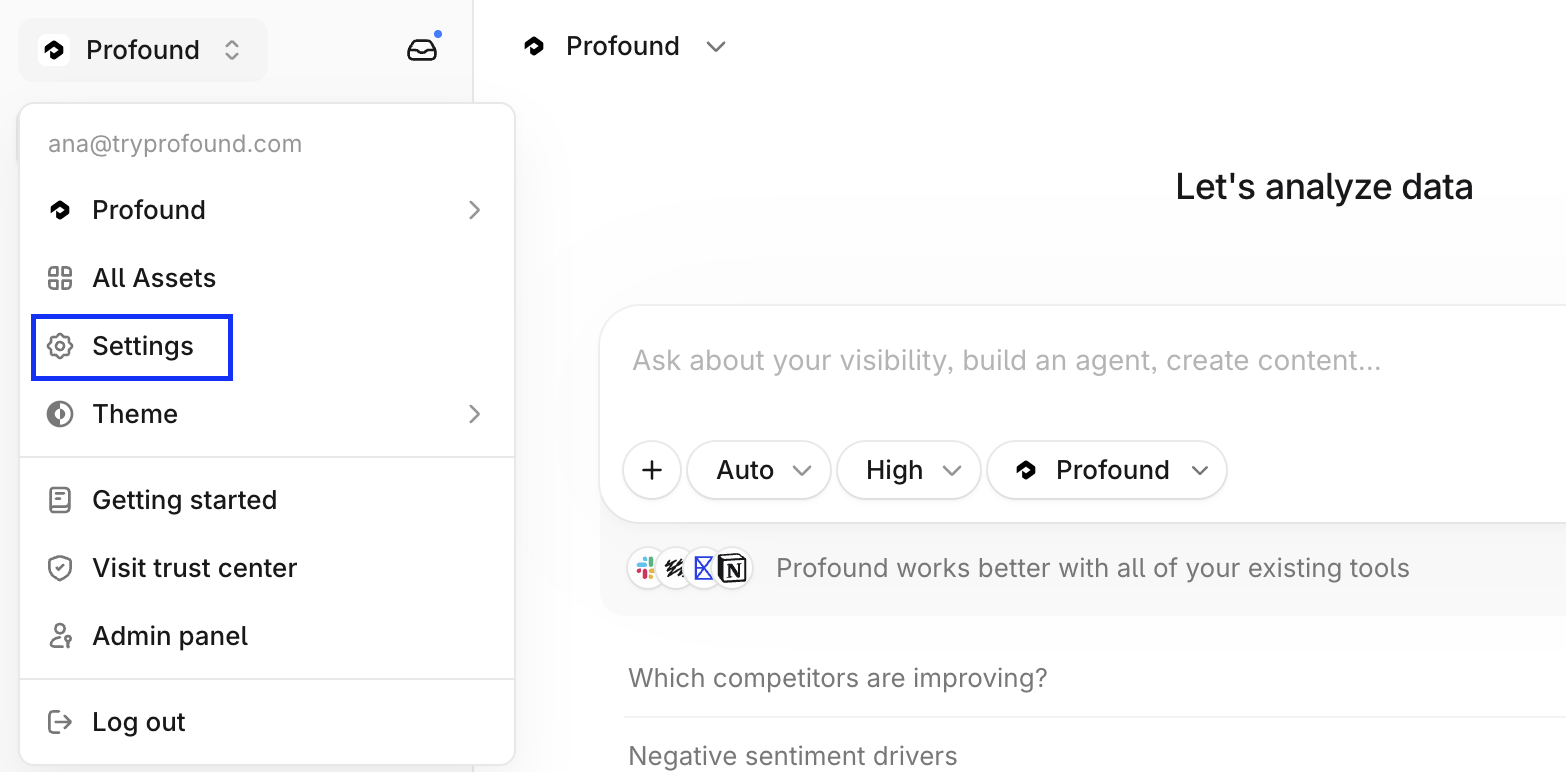
In Profound, select your organization name at the top left of the platform, then select Settings.
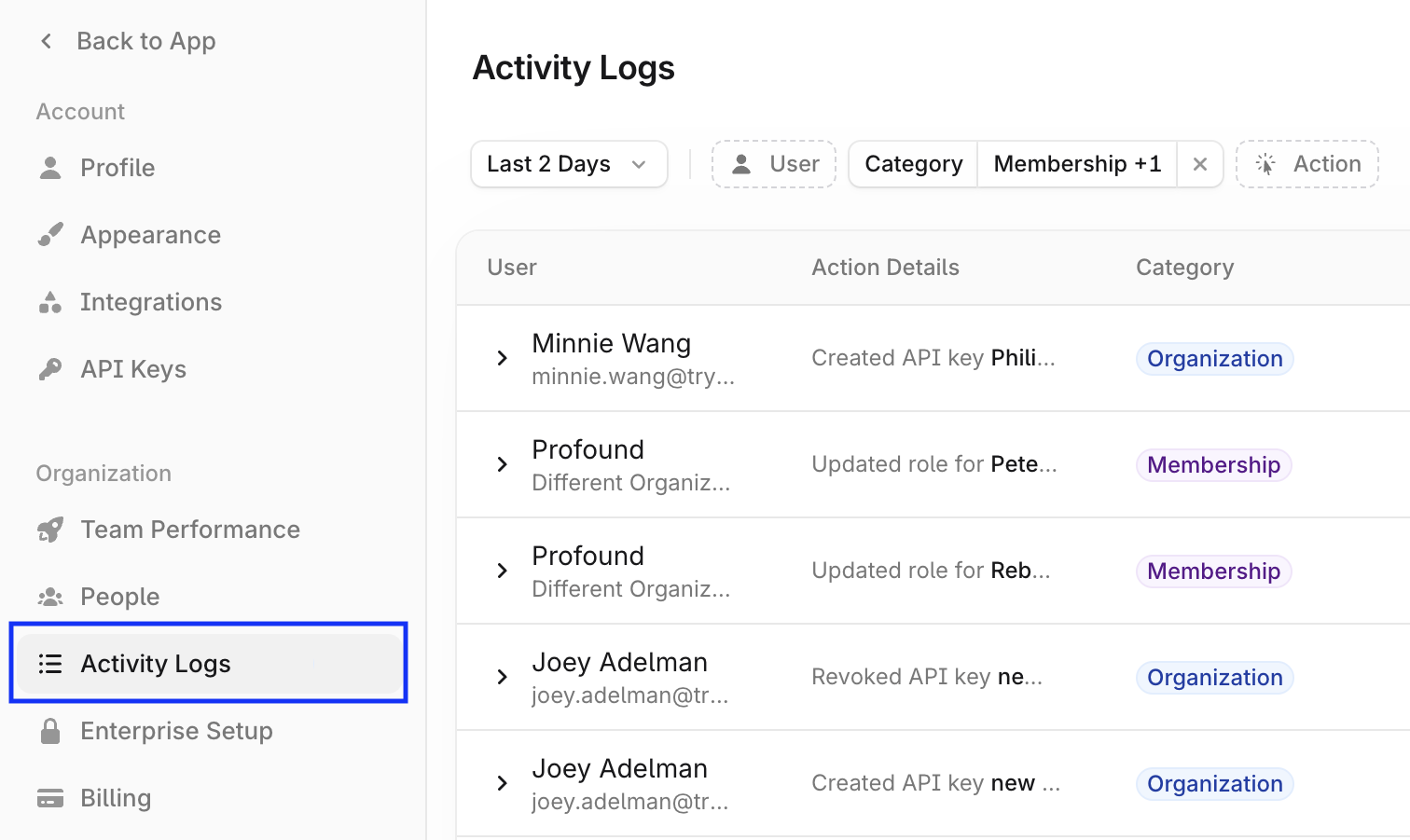
Select Activity Logs under Organization in the left navigation sidebar.
Step 2: Filter the logs
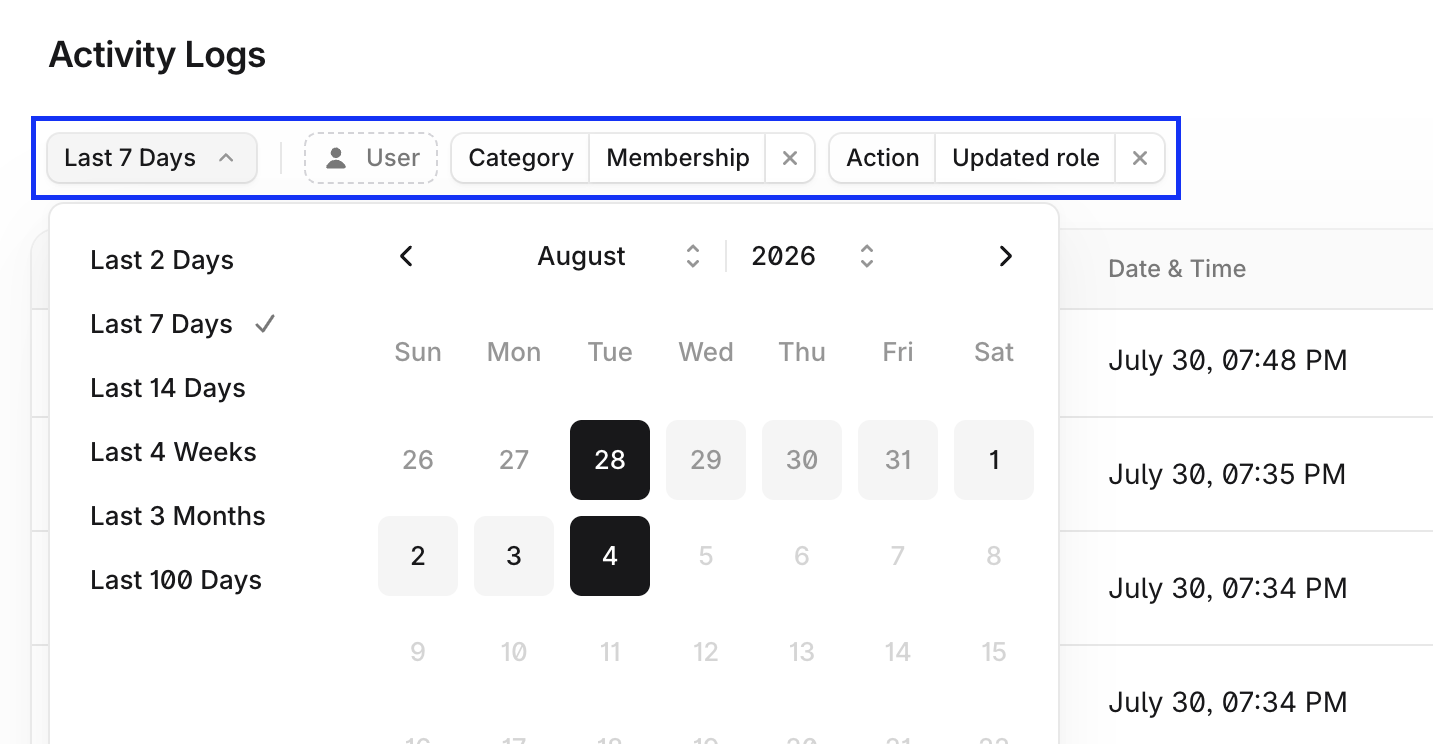
Use the date, action, and other filters above the logs table to view the events you care about.
Step 3: Export the results
Export the logs to share them with your security team or keep it for compliance records:
Select Export on the top right corner of the logs table.
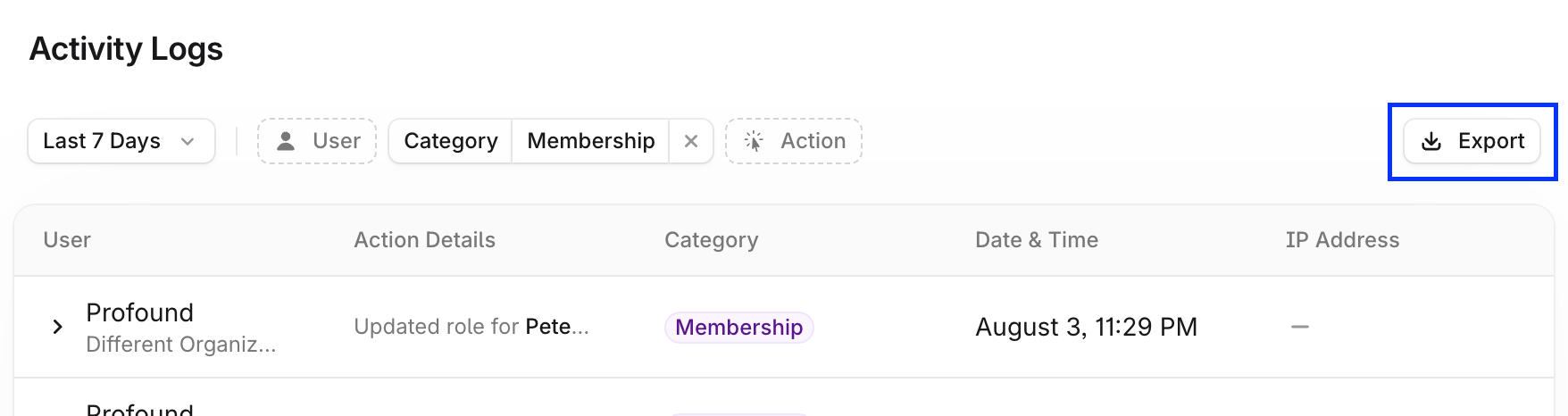
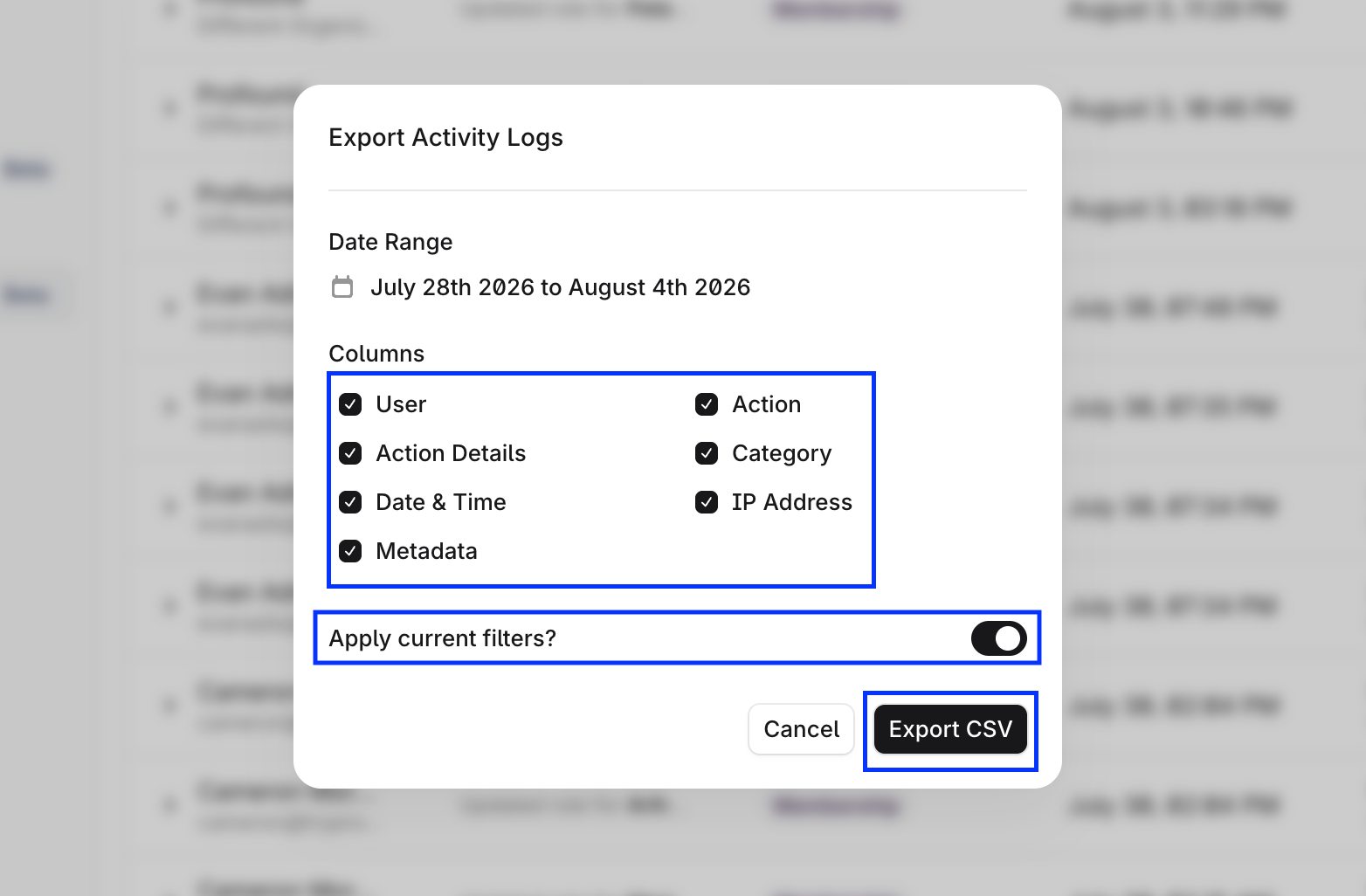
Select the columns you want to export, toggle Apply current filters to export filtered records, and select Export.