Analytics Setup settings and FAQ
Last updated: September 21, 2026
Available on: Enterprise plan (non-agency)
Find it in: Settings in the organization name menu at the top left of the screen
Required role: Admin or custom
Analytics Setup is where Admins view and manage how your organization tracks AI visibility: the categories you monitor, the owned and competitor assets in each category, how many prompts each category has, and the regions and languages you monitor in.
Analytics Setup applies to your entire organization. For category-level changes such as adding a competitor or renaming a category, use the 📄 Answer Engine Insights settings.
Categories
The Categories table lists every category with its owned domain, competitors, prompts allocated, regions, and languages. Search the table to find a category, or use the row menu to Open, Duplicate, or Delete it.
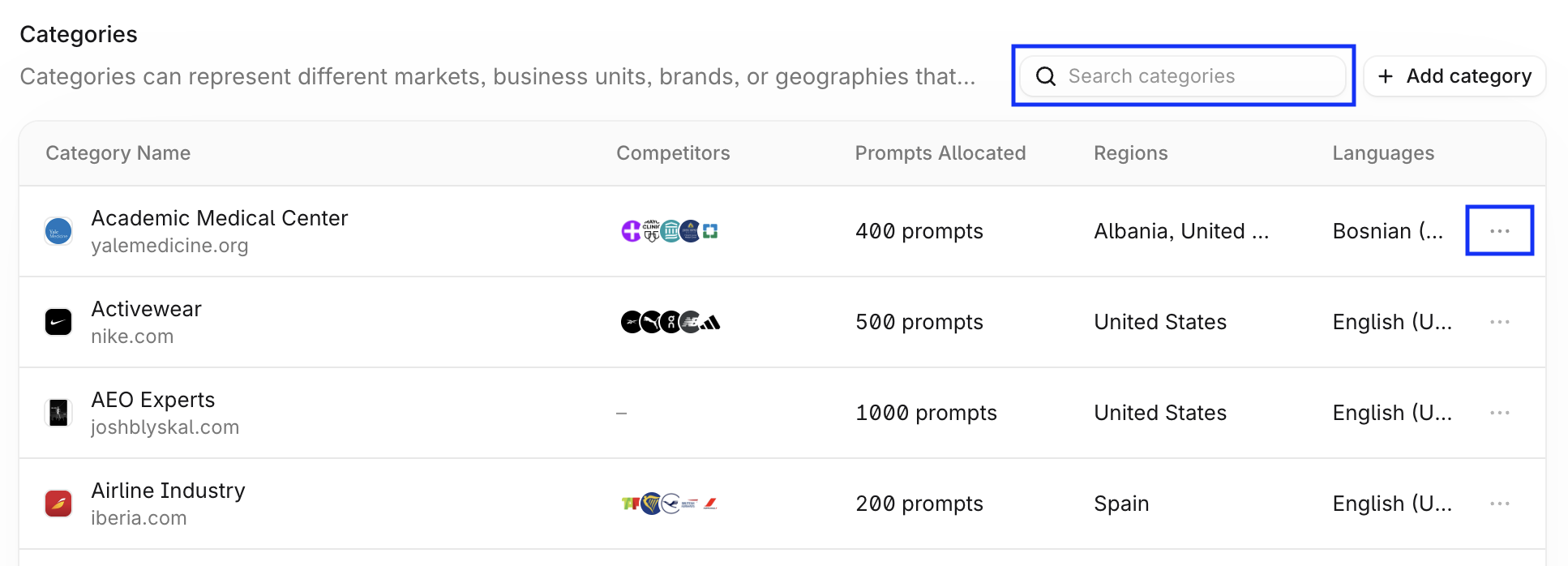
Create a category
Select + Add category and follow the dialog to set up:
Category details: name, prompts to allocate, regions, and languages. Regions and languages come from your organization's lists.
Owned assets: your brand or product, with its name and website. Add more than one if needed.
Competitors: the brands you want to compare against, each with a name and website.
You can't rename an asset after saving it, so check the spelling before you select Save.
Edit a category
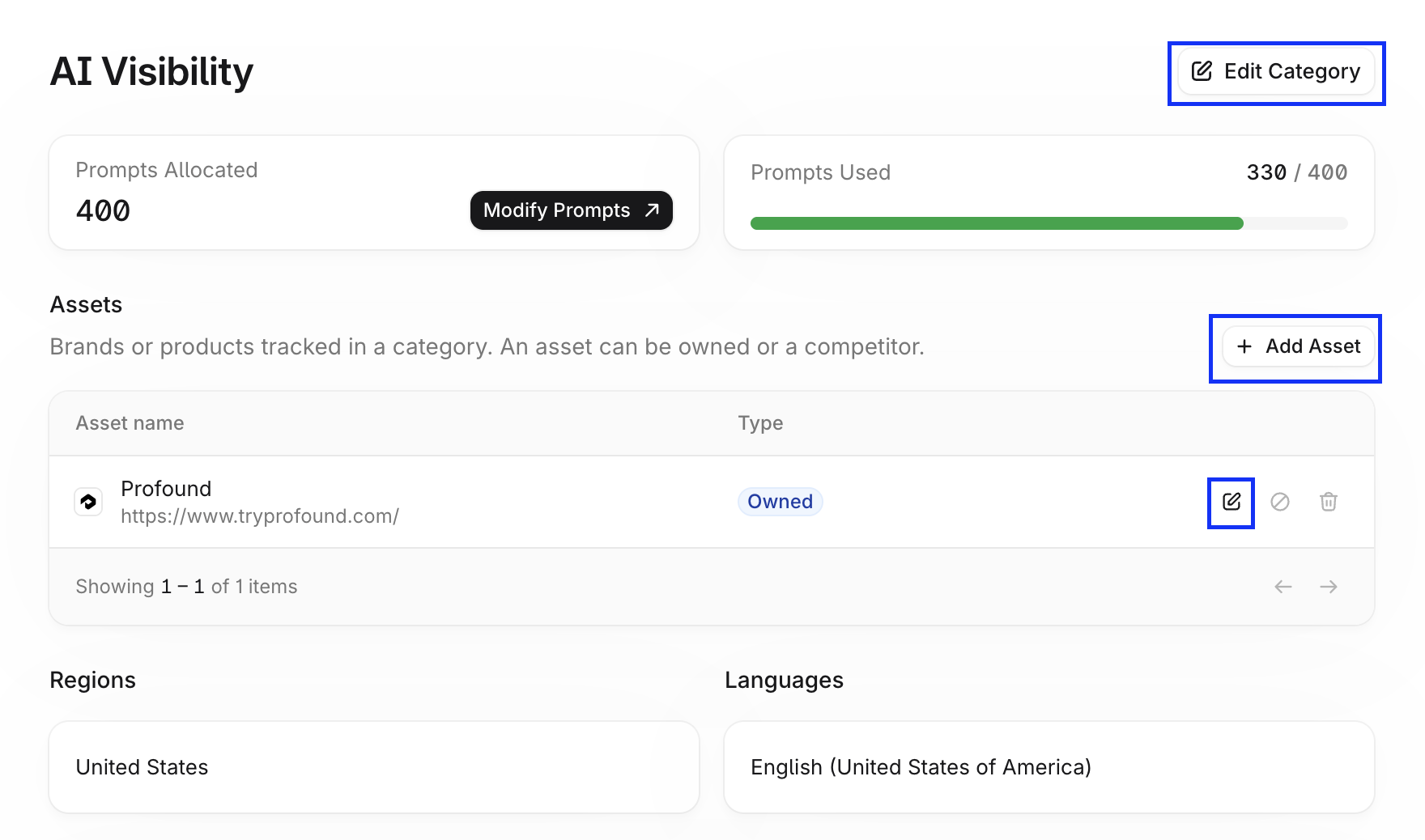
Open a category and select Edit category to change its name, prompts, regions, or languages.
To add assets, select + Add asset. To edit an asset, select the edit icon in its table row.
Shared categories
Categories shared with your organization appear in the table as read-only. Only the category owner can edit them.
Prompts
Prompts Allocated is the number of prompts a category can use out of your organization's total. When you create or edit a category, the form shows how many prompts remain to allocate. Moving prompts between categories doesn't affect your total prompt limits.
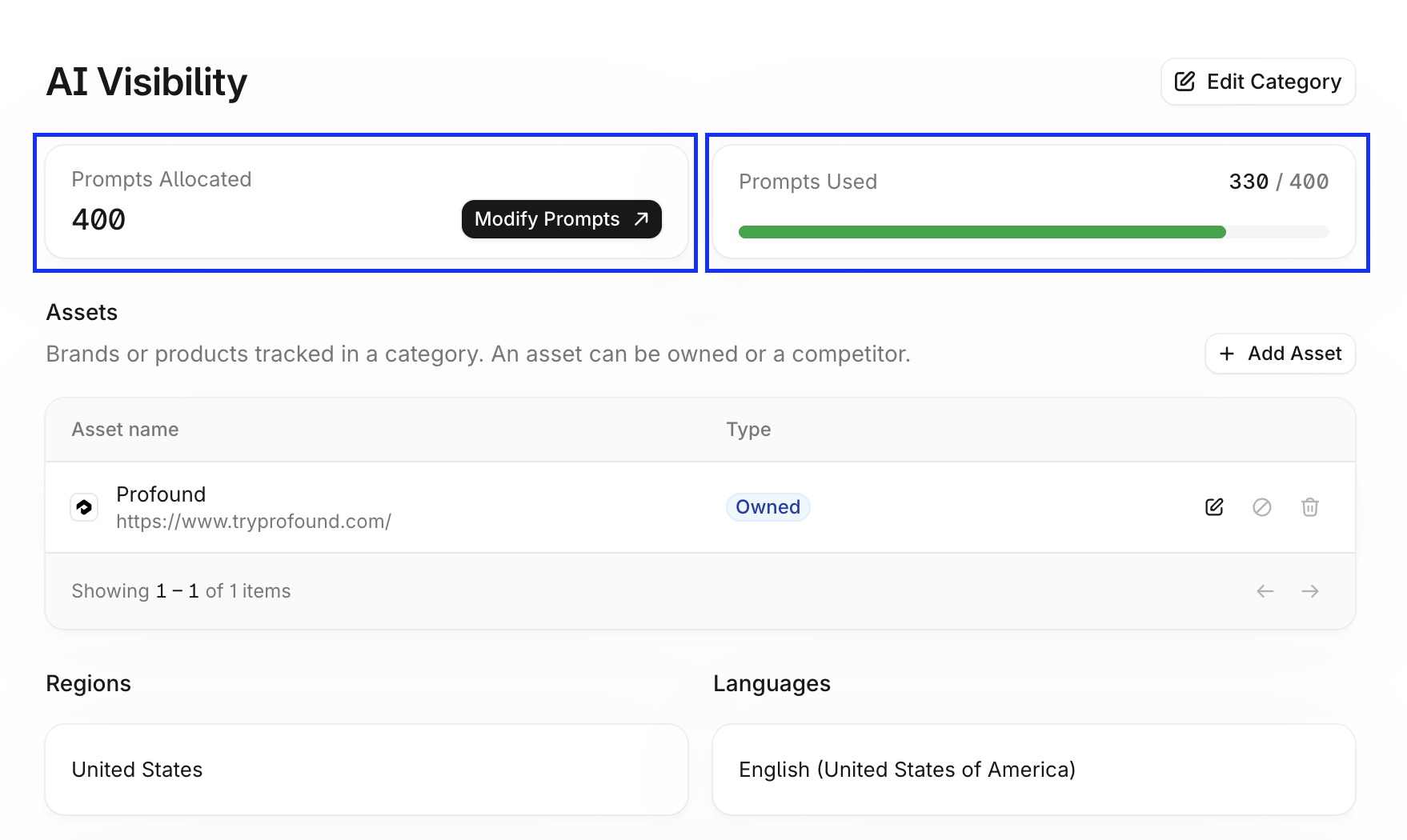
Prompts Used is the number of prompts the category has used out of its allocated prompts.To add or edit the prompts themselves, select Modify prompts. This opens the Prompt Designer for that category.
Assets
Assets are the brands or products you track in a category. Each asset is either Owned (your brand or product) or a Competitor.
Add and edit assets on the category page. Each category must keep at least one owned asset enabled.
Regions and languages
Regions are the geographic areas you monitor your categories in. Languages are the languages your prompts run in.
Both work in two ways:
Organization lists: the Regions and Languages tables on the Analytics Setup page list every region and language available to your organization, when each was added, and how many categories use it. The counter shows how many regions you use against your limit.
Per category: when you create or edit a category, choose its regions and languages from the organization list. Pick the ones relevant to your audience for the best results.
To add a region to your organization's lists, select + Add region, pick a Region type (Country, State / Province, or City), and search for the region. To add a language, select + Add language, then pick a language and a country.
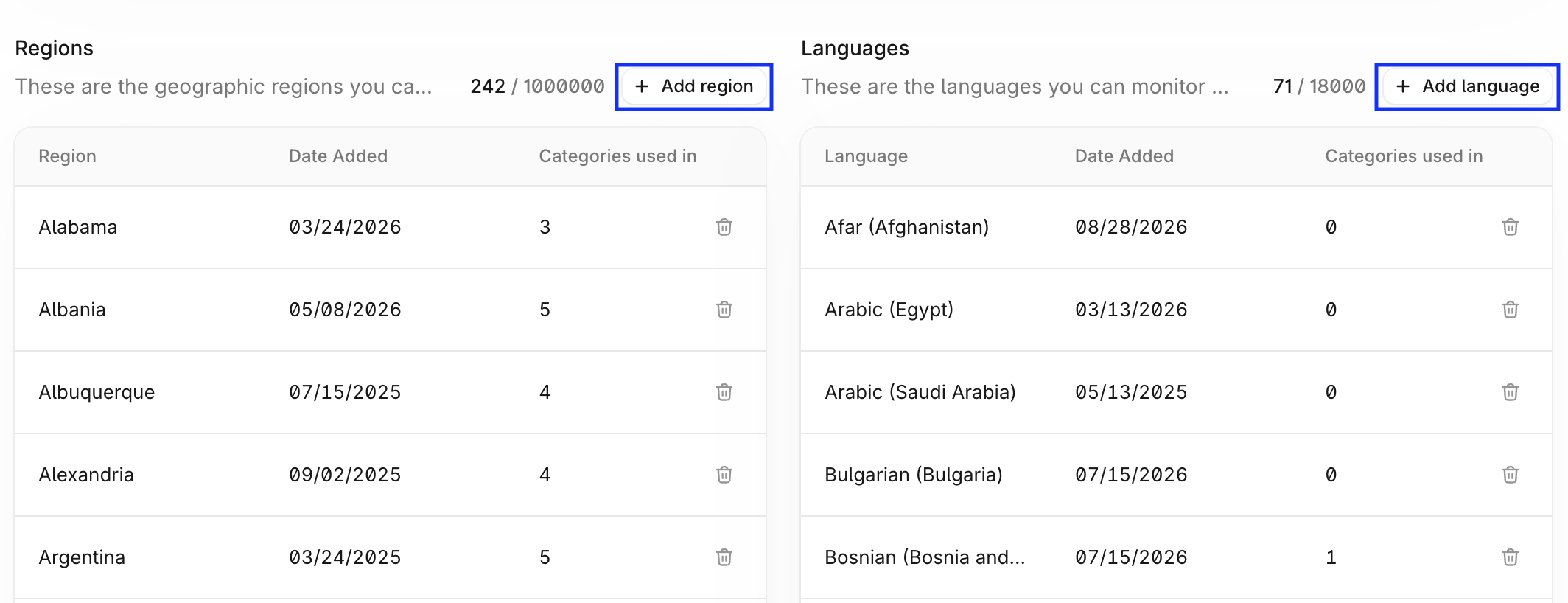
Deleting a region or a language from the organization list removes it from every category in your organization.
Platforms
Platforms Purchased section on the Analytics Setup page lists the answer engines your contract covers. On a category page, the Platforms section shows which of those engines the category runs on.
Platforms are view-only. To change them for a category, contact your Profound team.
Limits
Your contract with Profound sets your category, prompt, region, and language limits. When you reach a limit, Analytics Setup lets you know. Deleting a category, region, or language frees up capacity.
FAQ
Why can't I edit a category?
It's likely owned by another organization. Shared categories are read-only, and only the owner can edit them.
Can I change which platforms a category runs on?
Not in Analytics Setup. Contact your Profound team to add or remove platforms.
How do I get more categories, prompts, regions, or languages?
Your limits come from your contract with Profound. Contact your engagement manager to change them.
What is the difference between Analytics Setup and the settings in Answer Engine Insights?
Analytics Setup is for Admins and covers your whole organization: categories, prompt allocation, assets, regions, languages, and platforms. The settings in Answer Engine Insights cover one category and let you add or remove competitors and rename the category. Learn more in 📄 Answer Engine Insights settings.