Manage Your Agency's Brands
Last updated: January 27, 2026
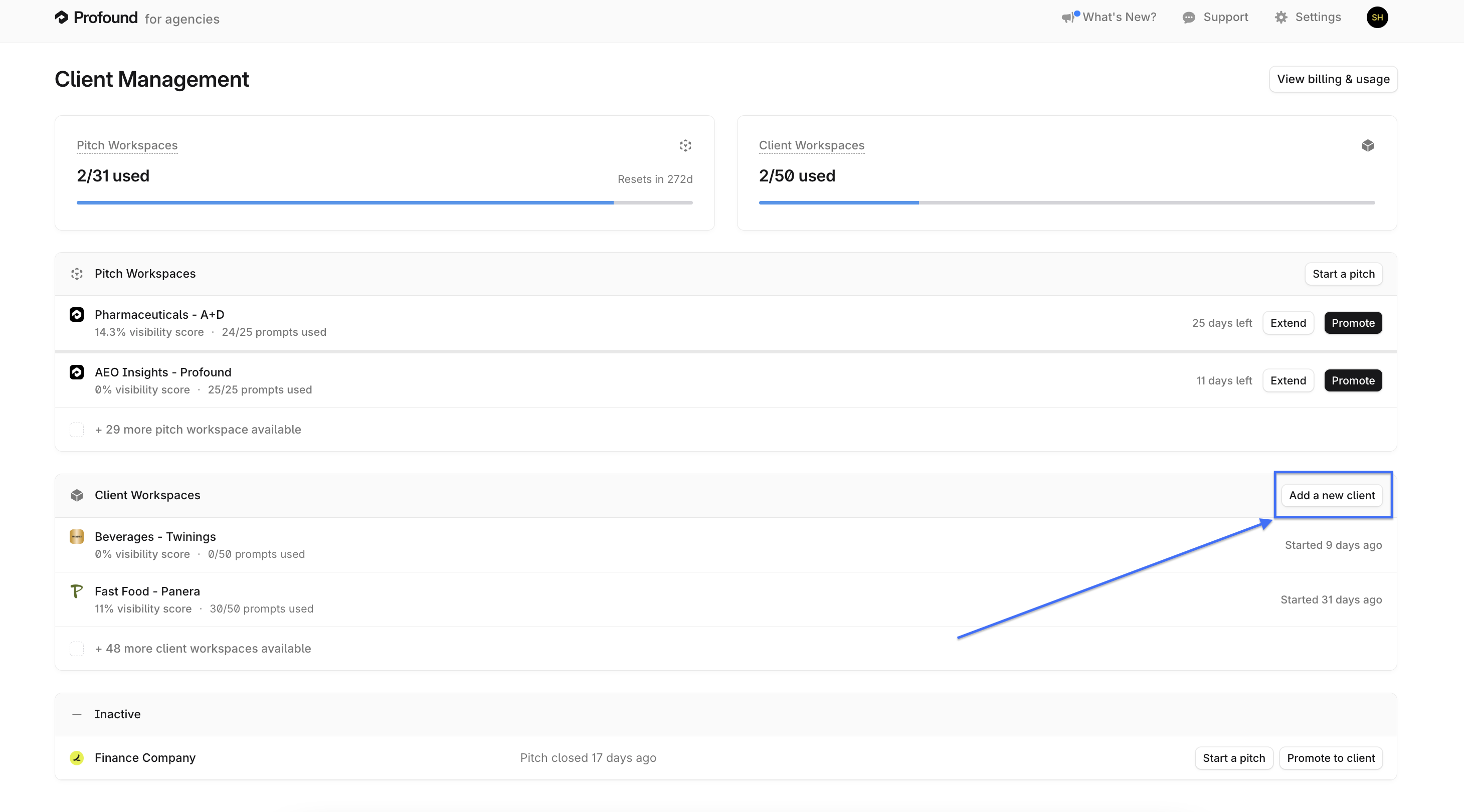
You can manage your Agency Mode pitch and client workspaces from the Agency Mode dashboard. From this dashboard, you can create, configure, and manage separate brand workspaces.
Agency Mode is for marketing agencies and consultancies monitoring multiple brands and clients. This is distinct from Profound's Agent Analytics, which measures how answer engines assess your web presence. Learn more about Agent Analytics here.
Access the Agency Mode Dashboard
To access the Agency Mode dashboard, click the brand asset dropdown in the upper-left corner of the Profound platform. Select “My Agency” to open the Agency Mode dashboard.
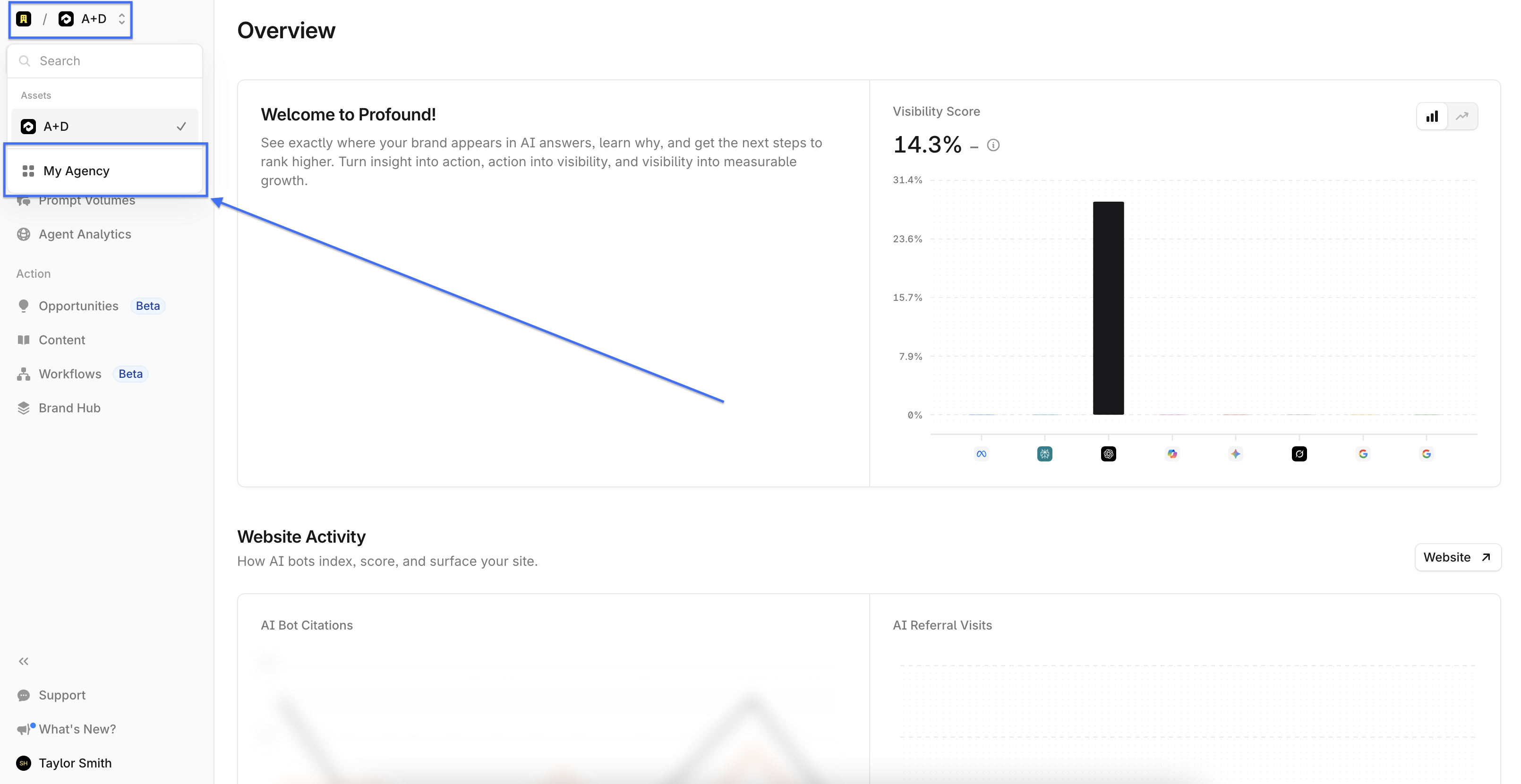
Create and Manage a Pitch
Every prospective client or business development opportunity for an agency should have its own unique pitch workspace. You can create and manage your pitch workspaces from the pitch workspace table in the Agency Mode dashboard.
Create a New Pitch
Click “Start a pitch” on the right side of the pitch workspace table to open the pitch creation menu.
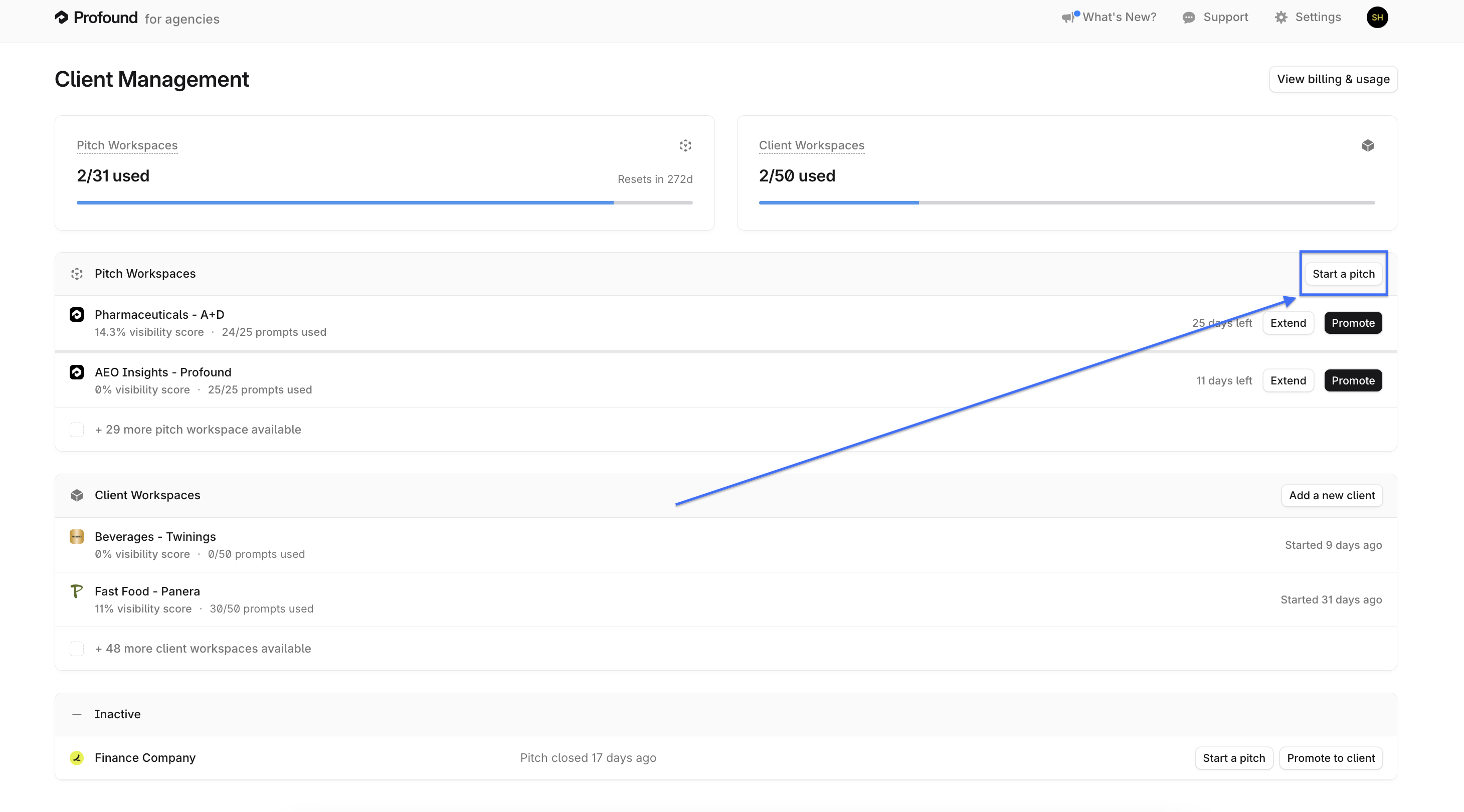
You can choose to generate workspace prompts using AI or upload them via CSV.
Provide the following information, then click “Create Pitch Workspace”:
Brand Name and Website - The client’s brand name and primary domain URL.
Industry - The prospective client’s unbranded industry that they operate in.
Regions - The countries the prospective client serves and the language spoken.
This creates prompts in the natural language of the country being tracked.
Topics - Key themes that you want to explore with your prospective client.
Competitors - The brand names and main website URLs of the prospective client’s key industry competitors.
Contextual Information - Additional details used to generate client prompts.
This can be content such as key audiences that you want targeted in the prompt generation, or journeys to reflect. Examples include:
“Prompts should be from the perspective of retail shoppers, and should include a mix of research/awareness, consideration and purchase related prompts across the full funnel.”
“Please include a mix of prompts with some from the perspective of a patient and some from the perspective of a physician, and ensure they focus more on upper- and mid-funnel queries these audiences would ask about the diabetes industry.”
• Prompt Creation Method - Choose between uploading your own CSV or by using Profound’s prompt generation.
You can edit auto-generated prompts in the Prompt Designer once the client workspace is set-up.
Manage Pitch Workspace Prompts
To access prompts for a pitch workspace, click the brand name in the pitch workspace table on your Agency landing page. This opens the Prompt Designer for that specific pitch.
You can also access the Prompt Designer from the “Prompts” tab in Answer Engine Insights while inside the brand workspace.
Promote a Pitch Workspace into a Client Workspace
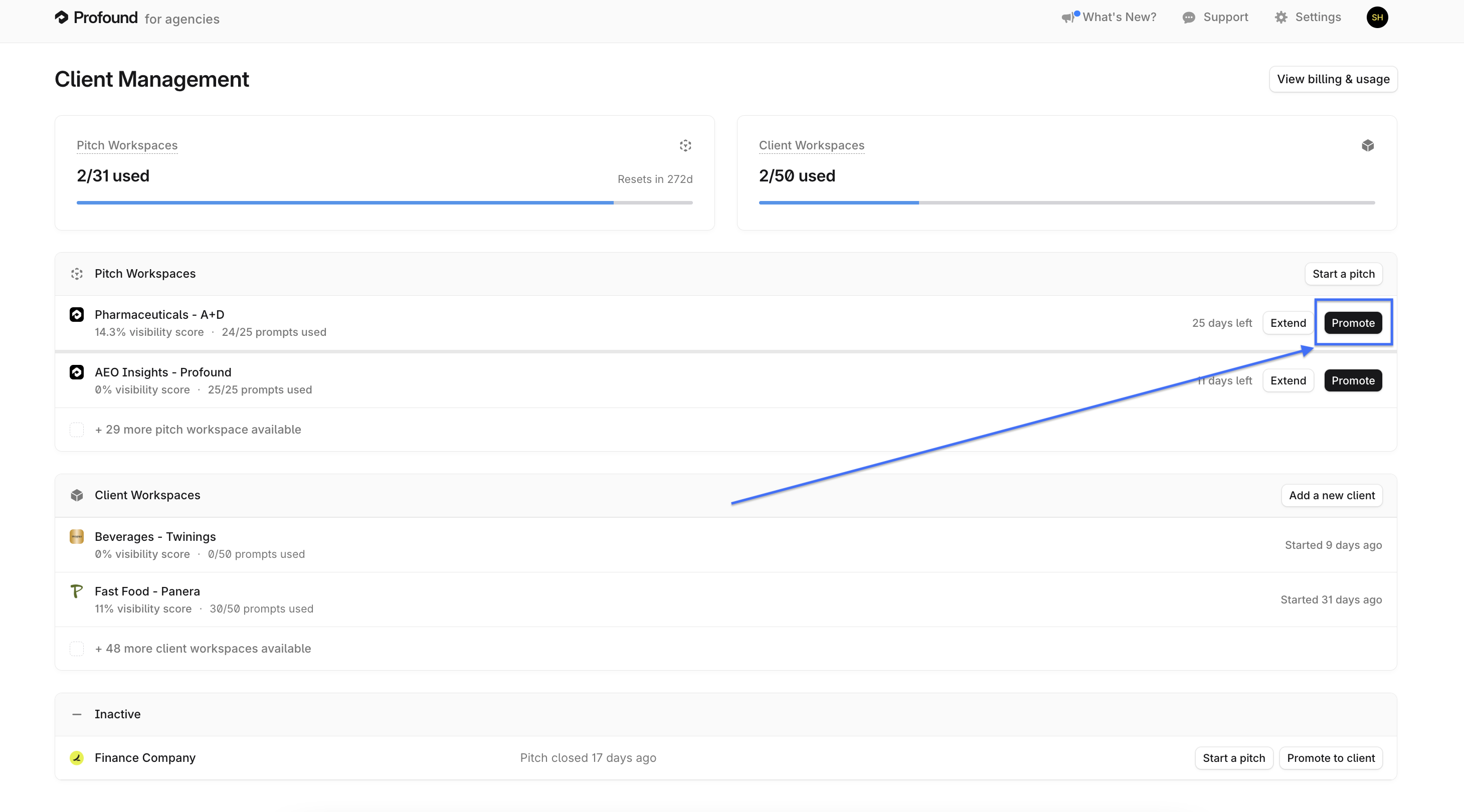
You can expand pitch workspace capabilities by promoting it into a client workspace. Profound recommends promoting any pitch workspace when a prospective customer converts into a paid customer.
Reach out to your Profound account management team or support for help designing the client workspace configuration for your client’s ongoing business needs.
Click “Promote” on the right side of the corresponding row in the workspace table to promote a pitch workspace to a client workspace.
Extend or End a Pitch
Click “Extend” on the right side of the corresponding row in the workspace table to extend a pitch workspace. You can extend a pitch for 30 days or for a pre-set time period for pitch workspaces.
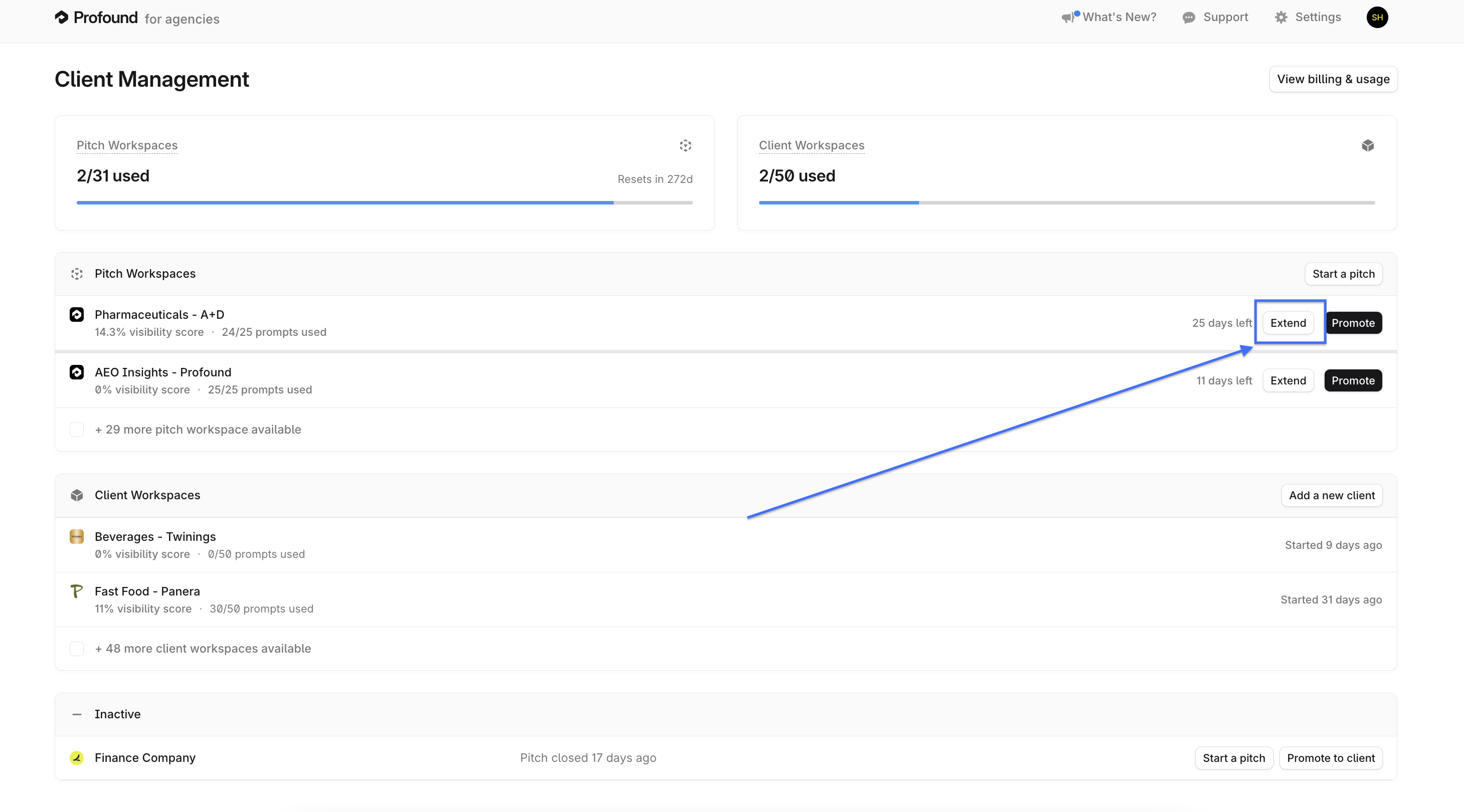
Extending a pitch prevents it from expiring and moving into an inactive state, and uses another one of your available credits for pitch workspaces. You can purchase more workspaces if you do not have any more available.
Create and Manage a Client Workspace
Every client should have its own client workspace, and some clients may require multiple workspaces for different lines of business, product categories, or countries. You can create and manage a client workspace from the client workspace table in the Agency Mode dashboard, or partner with Profound to create the client workspace on your behalf with your inputs.
Create a New Client Workspace
Click “Add a new client” on the right side of the pitch workspace table to open the client workspace creation menu.
You can determine if you want to generate workspace prompts using AI or alternatively via CSV upload.
Input the following parameters and click “Create Client Workspace” to create the workspace:
Brand Name and Website - The client’s brand name and primary domain URL.
Industry - The prospective client’s unbranded industry that they operate in.
Regions - The countries the prospective client serves and the language spoken.
This creates prompts in the natural language of the country being tracked.
Topics - Key themes that you want to explore with your prospective client.
Competitors - The brand names and main website URLs of the prospective client’s key industry competitors.
Contextual Information - Additional details used to generate client prompts.
This can be content such as key audiences that you want targeted in the prompt generation, or journeys to reflect. Examples include:
“Prompts should be from the perspective of retail shoppers, and should include a mix of research/awareness, consideration and purchase related prompts across the full funnel.”
“Please include a mix of prompts with some from the perspective of a patient and some from the perspective of a physician, and ensure they focus more on upper- and mid-funnel queries these audiences would ask about the diabetes industry.”
Prompt Creation Method - Choose between uploading your own CSV or by using Profound’s prompt generation.
Manage Client Workspace Prompts
As with any Profound workspace, you can manage prompts for a client workspace using the Prompt Designer.
Remove a Client Workspace
If a client ends its longer term engagement with your agency and you need to repurpose the client workspace for a different client, you can reach out to Profound. Profound will consult on how to leverage this client workspace allocation for a different ongoing business need if needed.
Assess Workspace Usage
The Agency Mode dashboard shows how many pitch and client workspaces you are using relative to your allotment or package of each workspace type purchased from Profound.
Each row also displays prompt usage for the workspace beneath the brand name, as well as the number of days remaining before a pitch workspace becomes inactive.
You can increase your workspace allotment by purchasing more workspaces.