Slack
Last updated: July 15, 2026
The Slack node sends a message to a selected channel within a connected Slack workspace. Use this step when you want your Agent to notify a team, share AEO data, or trigger operational follow-up directly in Slack, for example to send Agent run results to a team channel or alert a team when an Answer Engine metric crosses a defined threshold.
Connect Slack
Before using this node, connect a Slack workspace and add the Profound Slack bot to the channel you want to post messages to.
Authorize Slack Workspace
To authorize a Slack workspace:
Add the Slack node to your Agent workflow.
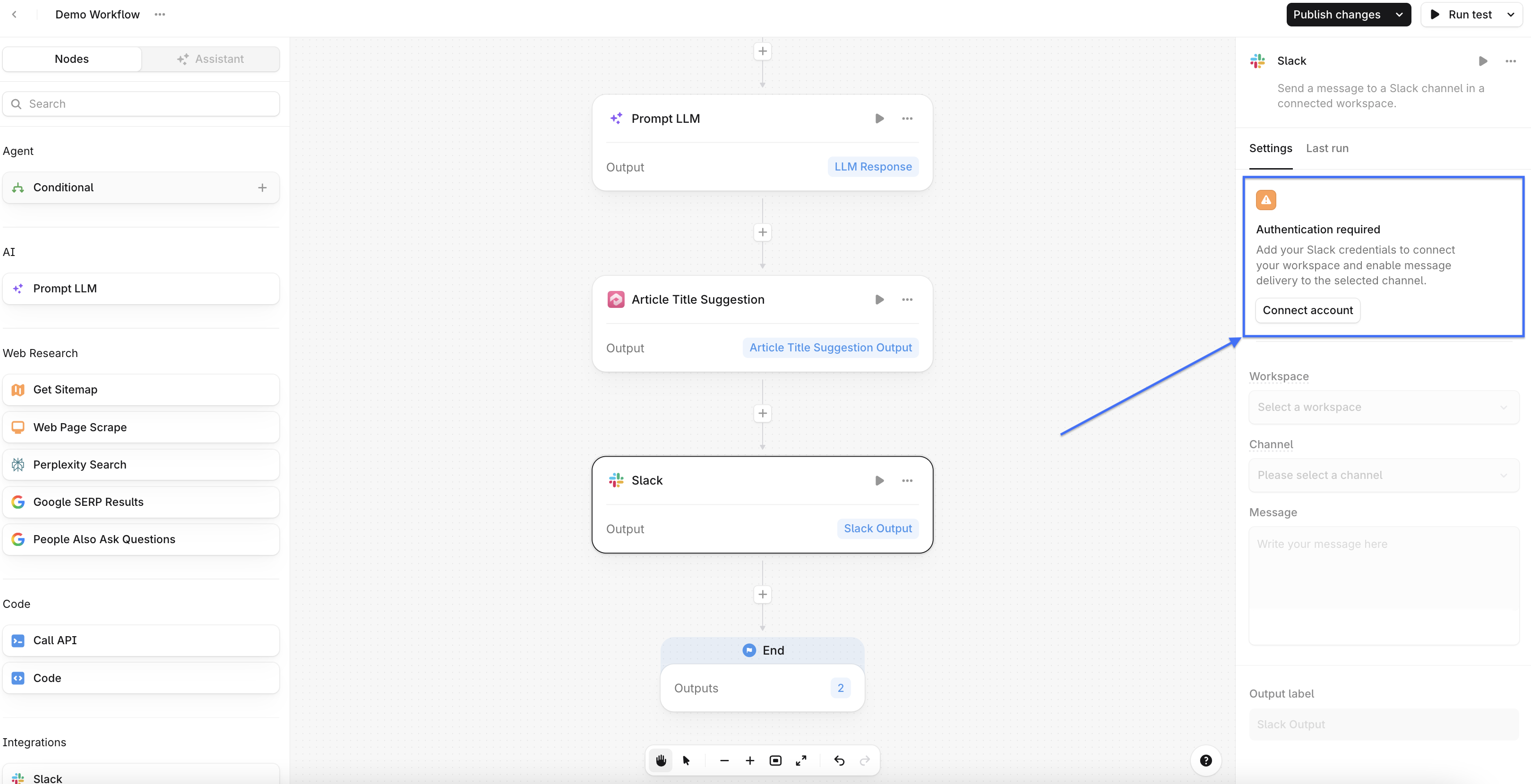
Open the node's configuration panel on the right side of the Agent builder.
Click Connect Account.
Authorize access to your Slack workspace.
Once connected, select the workspace from the dropdown menu.
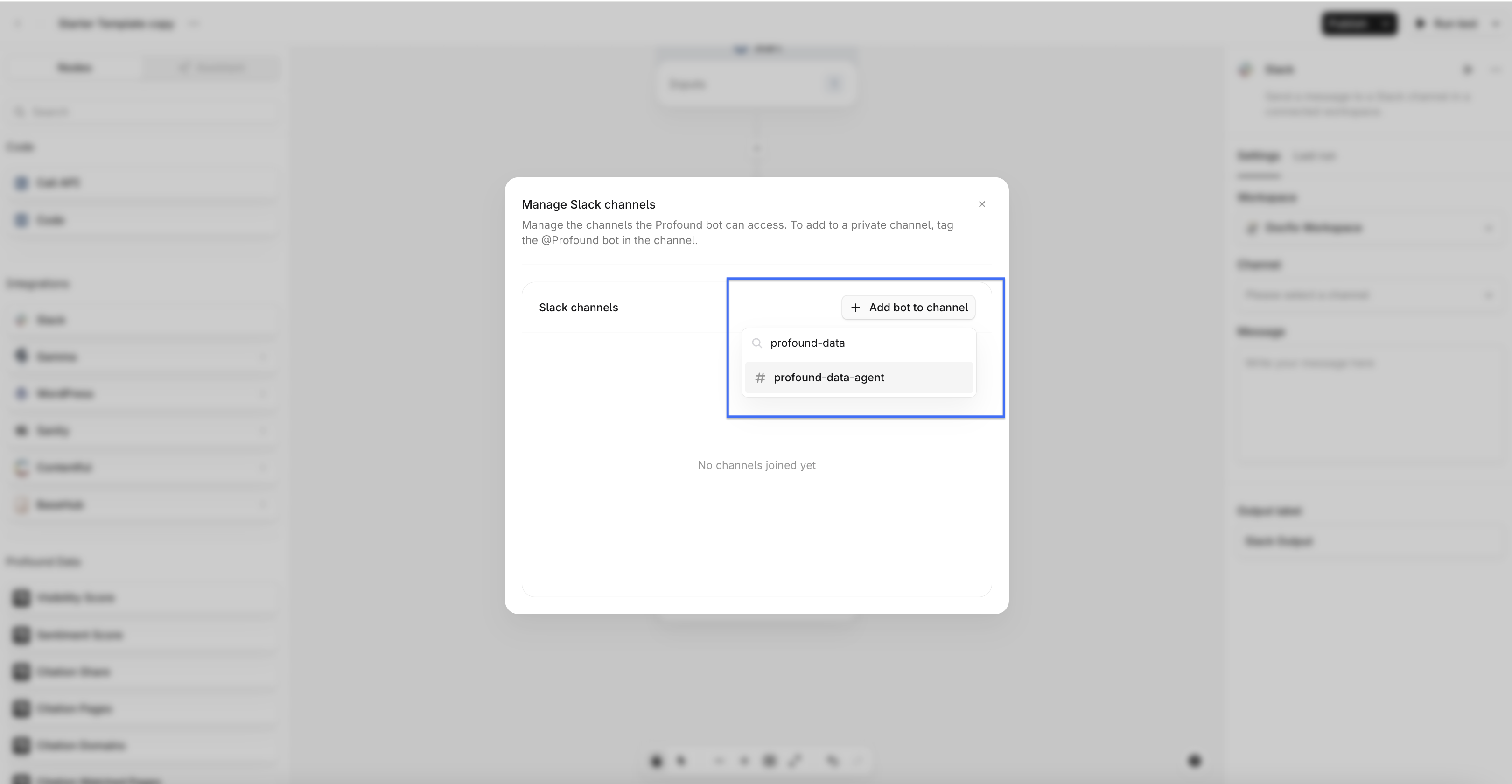
Add Profound bot to Slack channel
Select the channel dropdown from the Agent node configuration.
Click Manage Channels.
Select + Add bot to channel.
Use the search to find the channel you want to connect and click it.
Once connected, select that channel from the dropdown menu.
You only need to connect a workspace and a channel once. After authorization, they will remain available for future workflows.
Node Configuration
Selecting the Slack node opens its configuration panel on the right side of the Agent builder.
Slack workspace (required)
Select the connected Slack workspace where the message will be sent.
Channel (required)
Choose the Slack channel where the message should be posted. Select a channel from the dropdown, or dynamically insert a channel value from an earlier step by typing /.
The workflow must have permission to post in the selected channel.
Message (required)
Keep messages concise and structured for readability inside Slack.
Enter the message to post to Slack. Write a static message, insert dynamic variables from earlier workflow steps by typing /, or combine static text with dynamic output.
Example:
New visibility report is ready!
Visibility Score: /visibility_score
Share of Voice: /share_of_voice
Output
The Slack node returns confirmation data indicating whether the message was successfully sent. Use this output in subsequent nodes for logging and reporting, conditional branching based on delivery status, or triggering follow-up actions.