Add conditionals to Agents
Last updated: June 11, 2026
Conditionals are decision points within your Agent workflow that direct the Agent down different paths based on variable values.
Use a Conditional if an Agent must operate differently depending on an input or a value generated in a previous step. For example, route workflows to trigger different prompts based on specific user input.
Add a Conditional
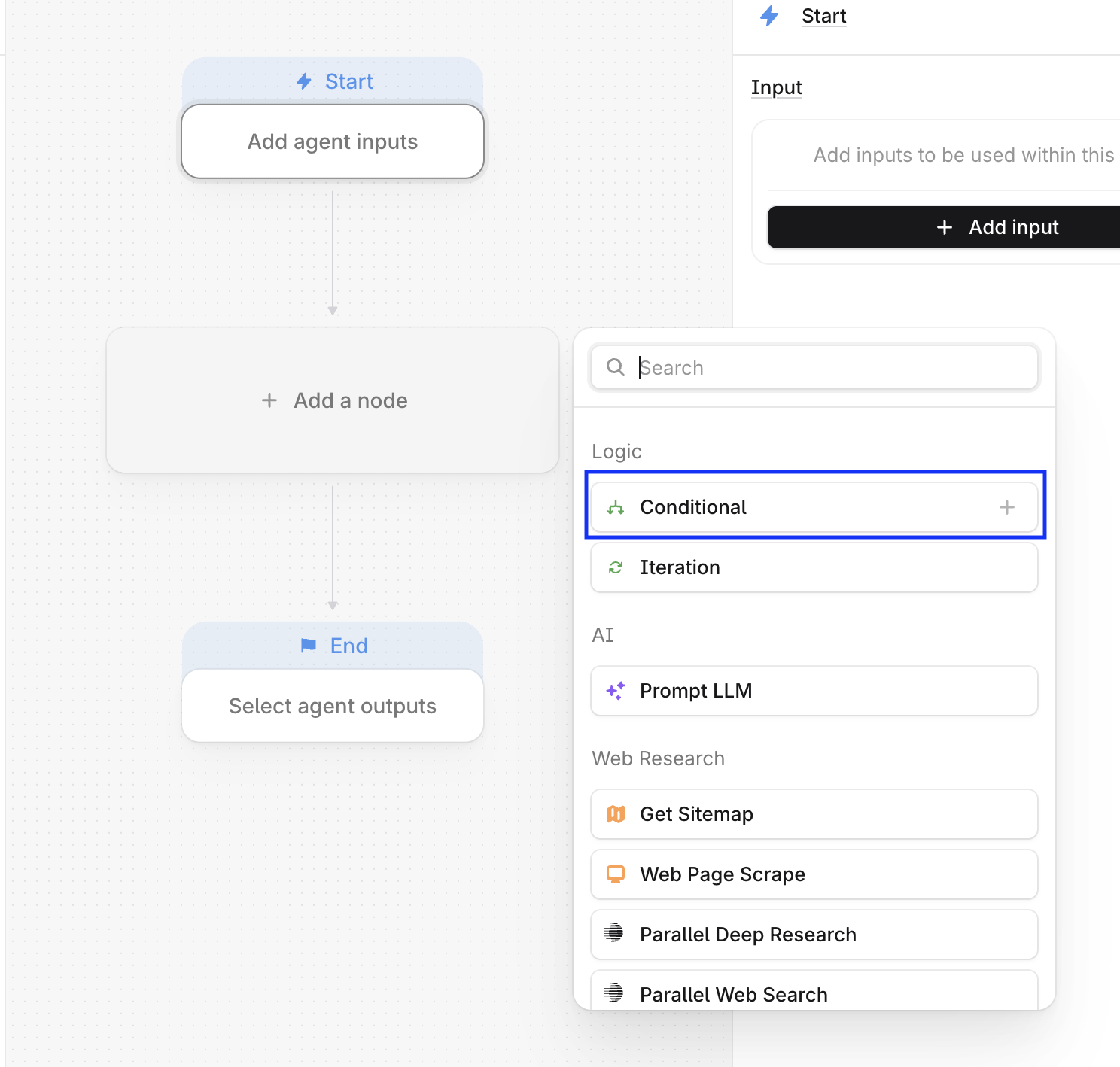
Click the + icon in the Agent builder and select Conditional. Alternatively, drag Conditional from the node selection menu into the workflow.
Conditionals require you to define a condition using a comparison expression (for example: equals, greater than, less than, or contains). If the condition evaluates as true, the Agent follows the If true branch. If not, it follows the If false branch.
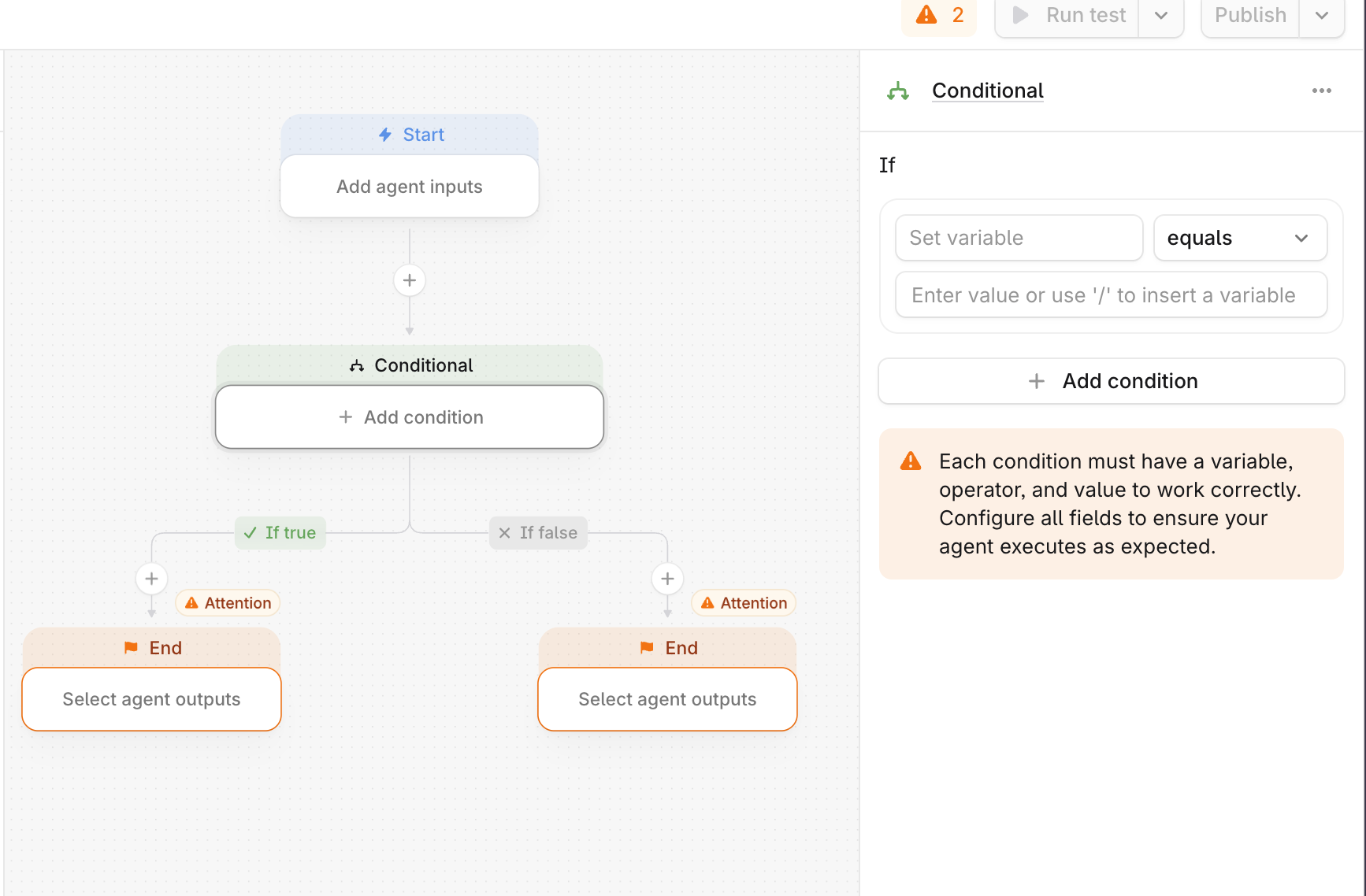
Each branch can contain its own sequence of steps.
Configure conditions
When configuring a Conditional, select:
The variable to evaluate
The evaluation operator (equals, greater than, less than, and so on)
The value to compare it against
Click + Add Condition to add multiple conditions to the same branch. Multiple conditions can be combined using AND (all conditions must be true) or OR (at least one condition must be true). When multiple conditions are configured, all must be satisfied for the Agent to follow the If True branch.
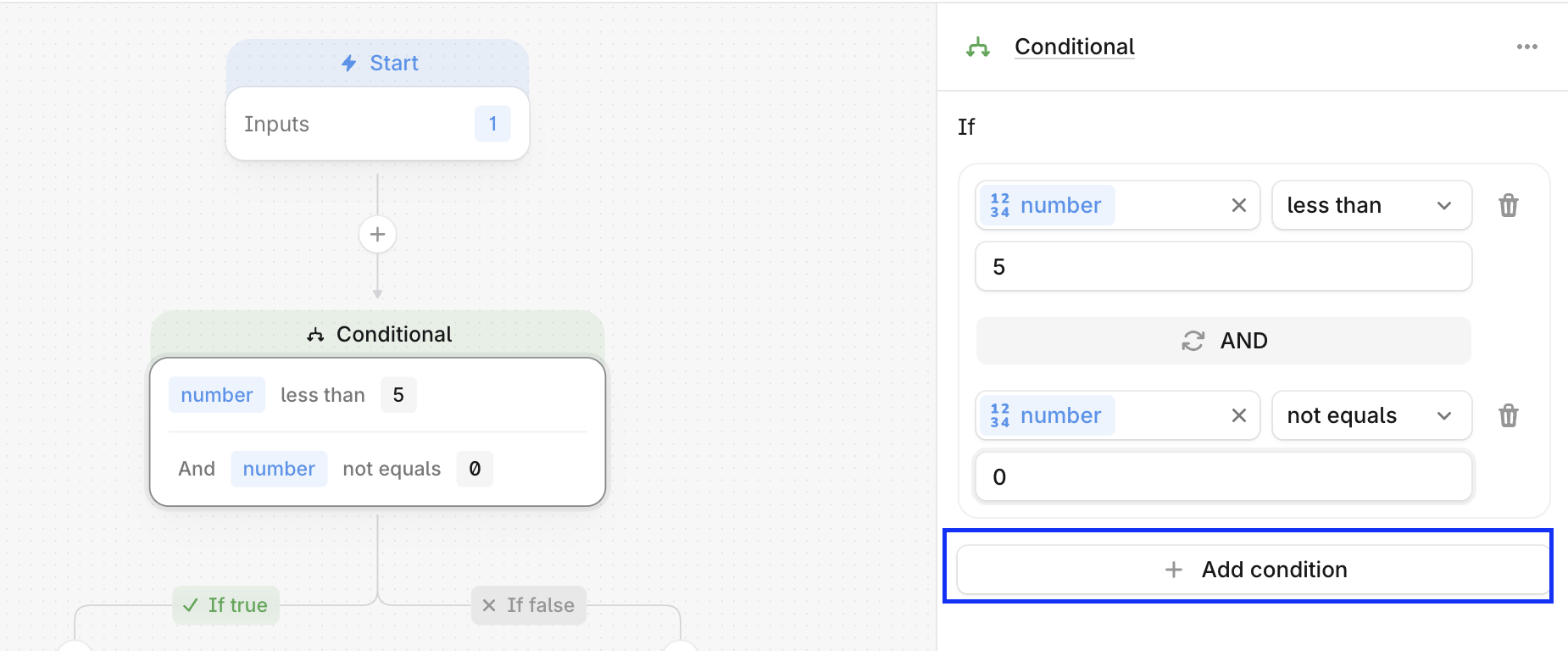
If the conditions are not satisfied, the Agent automatically follows the If false branch.
Conditional branch requirements
There are several requirements to ensure an Agent executes as expected:
The variable used in a condition must exist and must be created in a previous step
Both branches must ultimately lead to an End step to complete the Agent run
The evaluation operator must align with the input variable type:
Numerical operators only work with numeric values. For example, greater than will not work on a string such as "Best AEO Tools"
String operators only work on text strings. For example, contains will not work on a numeric value of 126