Personas in Answer Engine Insights
Last updated: September 16, 2026
A Persona is an audience profile: the demographics, employment, and behavior of the person asking an answer engine a question.
Add Personas to prompts to simulate the context an answer engine has about a user, so you can see how brand mentions, citations, and sentiment change by audience.
Quick facts
When you add a Persona to a prompt, Profound adds the Persona's details to the prompt text and runs it as a separate prompt. Each Persona on a prompt adds a prompt run. This affects your prompt limits.
The baseline for a prompt is No Persona: it runs without any Persona context.
Personas belong to a category. By default, you can create up to three Personas per category. Contact your Profound team to raise the limit or to add Personas to your plan.
New Persona runs start with the next daily prompt run, so expect the first Persona data in Answer Engine Insights to appear after the next processing cycle.
Add a new Persona
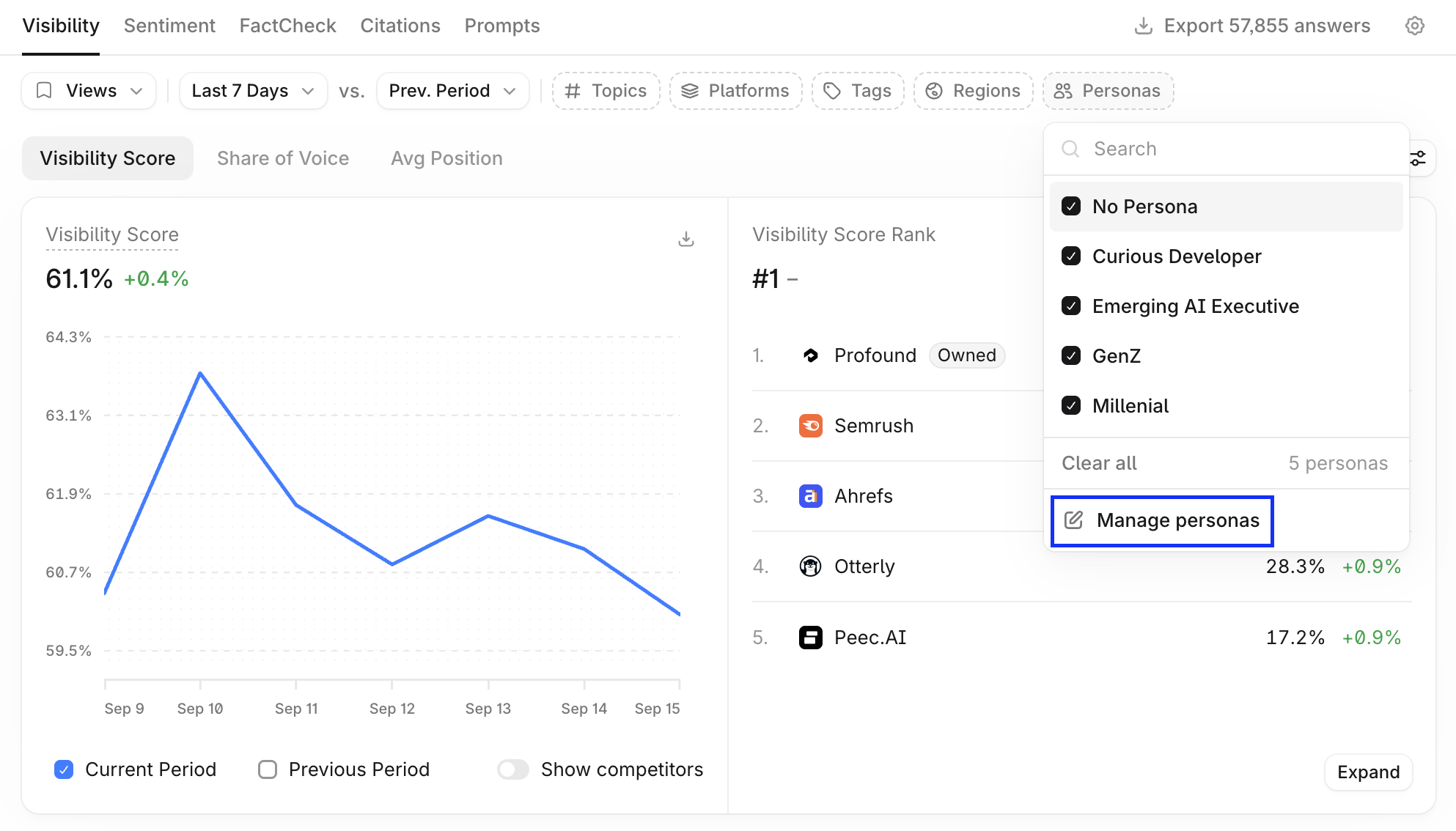
In Answer Engine Insights, select Personas in the filter bar, then select Manage Personas.
Select + Create New.
If + Create New is disabled, you may have reached your Personas limit. Contact your Profound team to explore your options.
Enter a Name (up to 50 characters).
Fill in the fields that shape how an answer engine reads the prompt: Demographics (Gender and Age Range), Employment (Company Size, Industry, Role Seniority, and Job Title), and Behavior (Motivations and Pain Points, up to 500 characters each).
Select Save.
Fill in only the details that change how an answer engine interprets the prompt. Motivations and Pain Points carry the most weight.
Manage and delete Personas
Manage Personas lists every Persona in the category with its details, the number of prompts it runs on, and when it was last edited. Open the Actions menu (…) on a Persona to:
Edit: change any field, then select Save.
Duplicate: create a copy in the same category.
Export: download the Persona's details.
Delete: remove the Persona and stop its prompt runs.
Personas are specific to a category, so to use the same Persona elsewhere, create it again in that category.
Add Personas to prompts
Assign Personas in the Prompt Designer.
One prompt
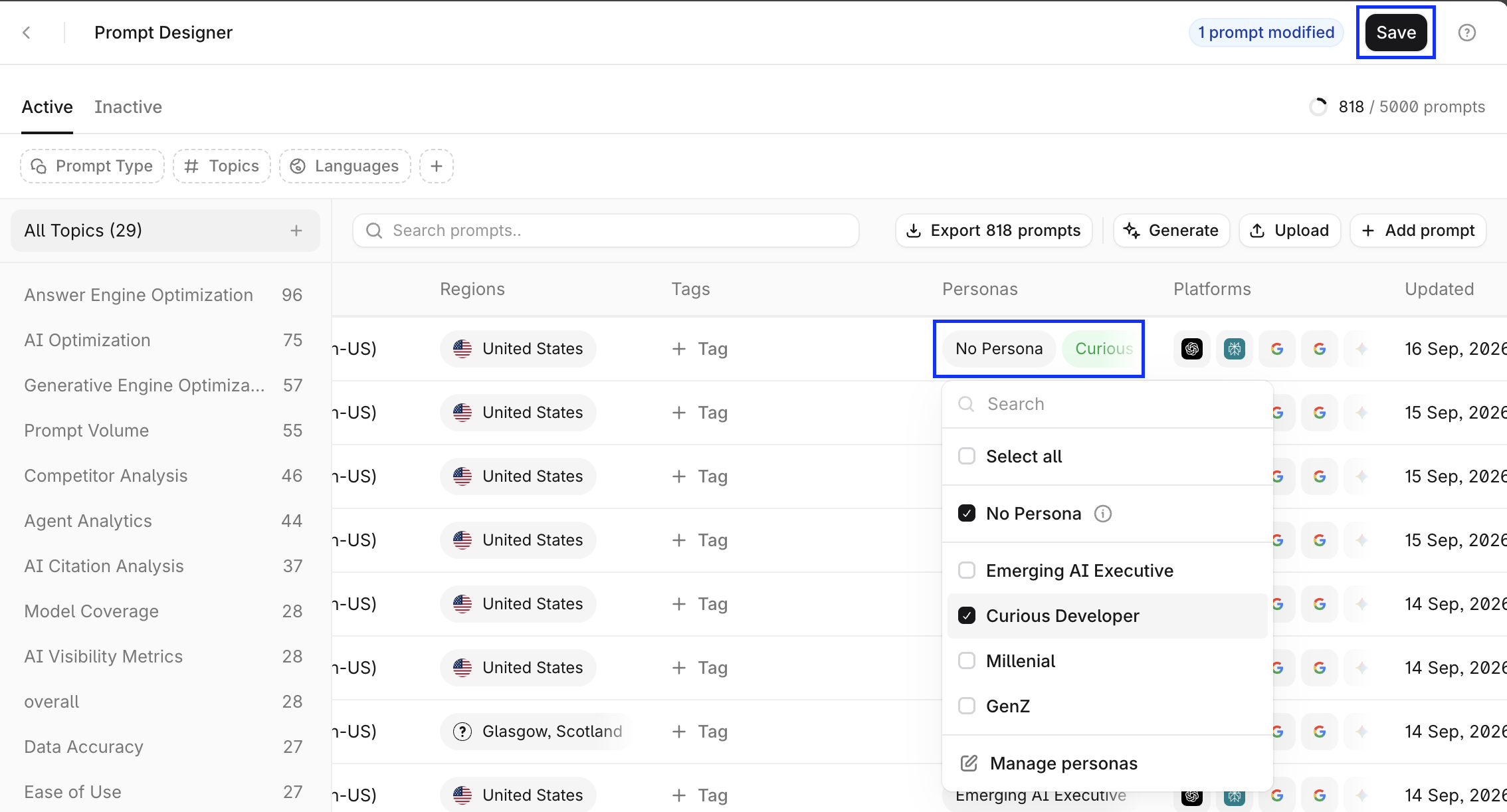
Select the prompt's Personas cell, check or uncheck the Personas you want to apply, then select Save.
Several prompts
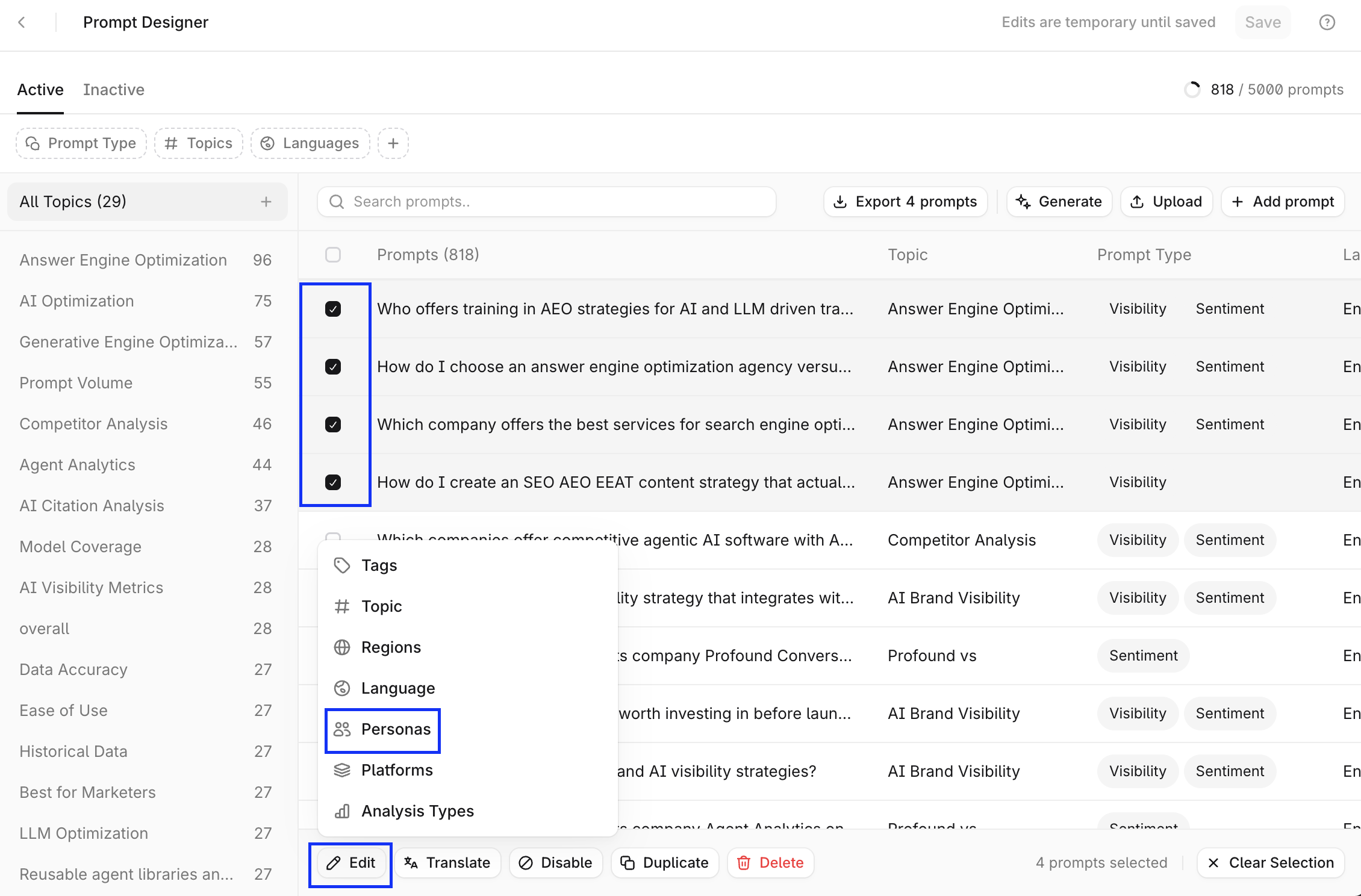
Check the prompts you want to change.
In the bar at the bottom, select Edit > Personas.
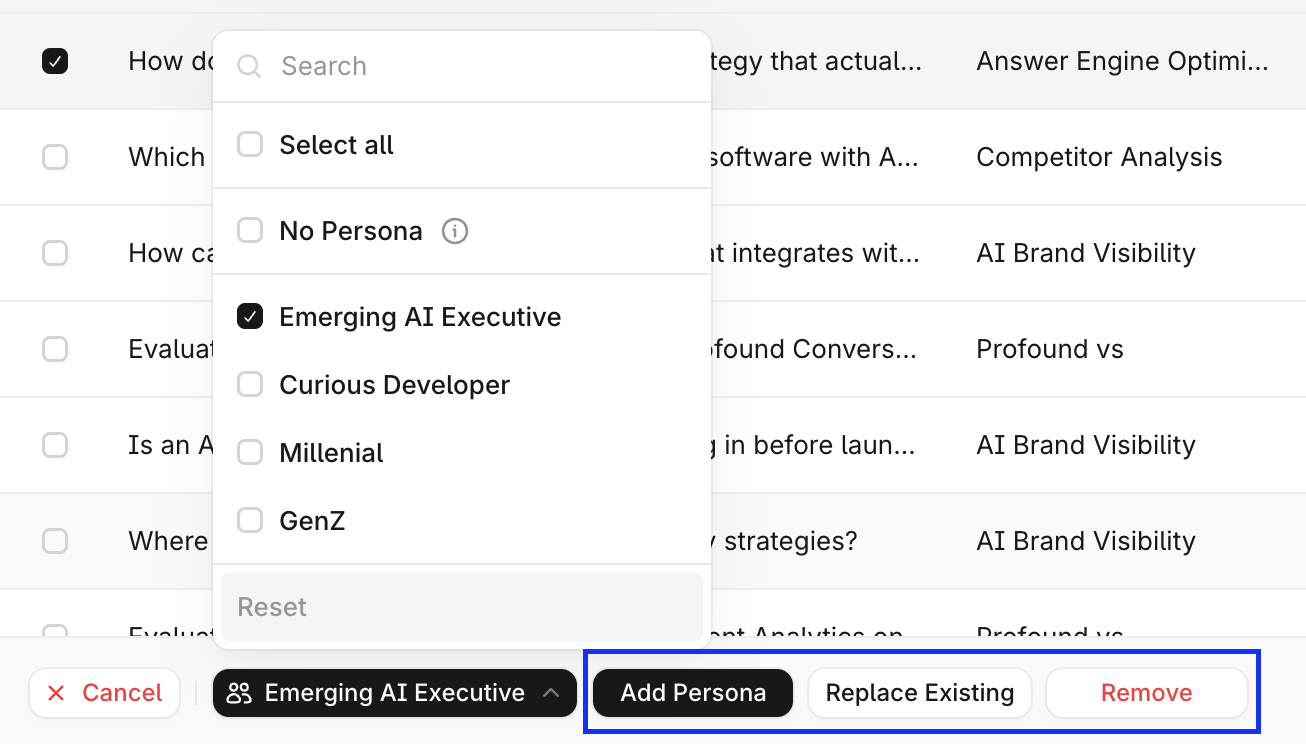
Select the Personas, then choose Add Personas, Replace Existing, or Remove.
Select Save.
Removing a Persona from a prompt stops that Persona's runs for the prompt. The data collected for that prompt and persona is no longer visible in Answer Engine Insights.
Analyze topics and prompts by Persona
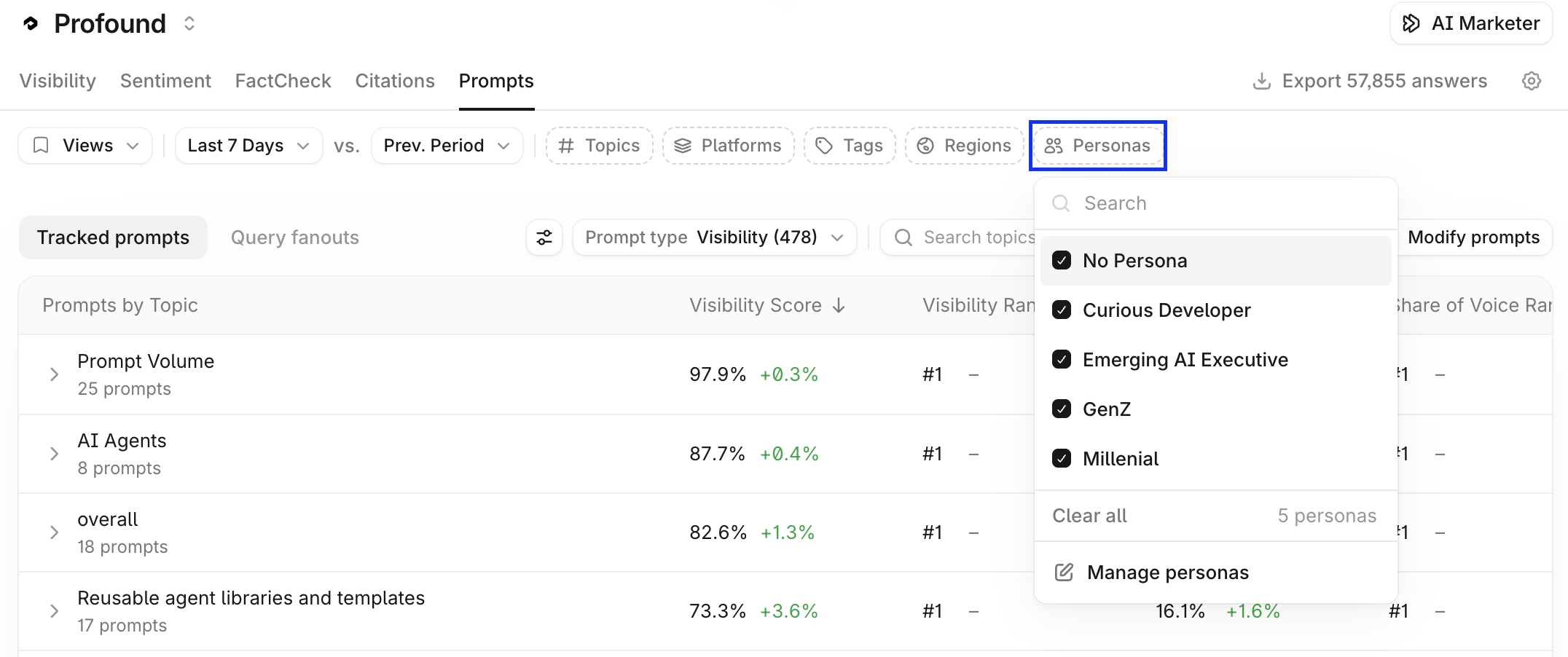
To analyze prompts by Persona, use the Personas filter in Answer Engine Insights > Prompts. Then, select Analyze on any topic.
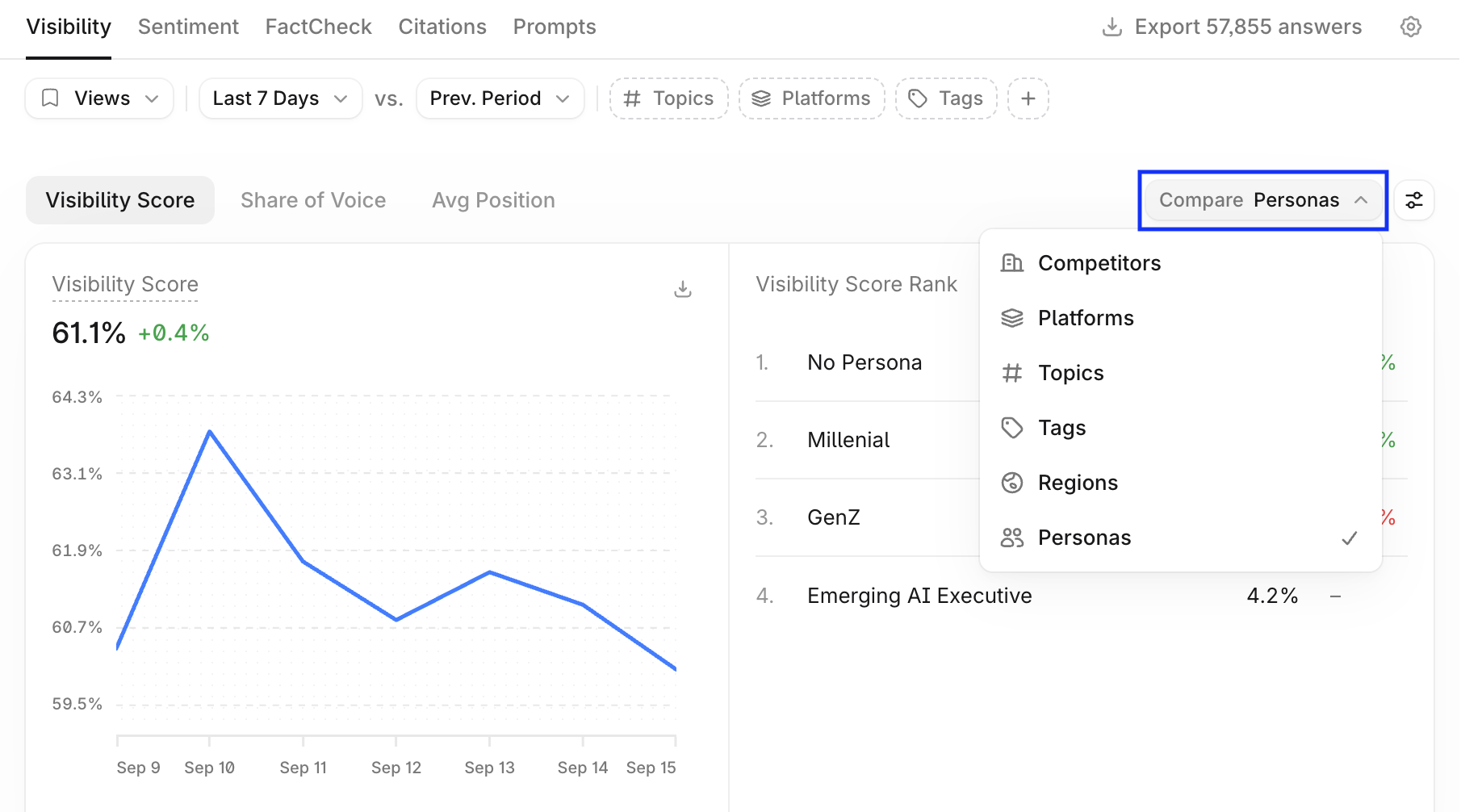
To view the visibility and citations data for Personas, select Compare > Personas in the Visibility and Citations tabs.
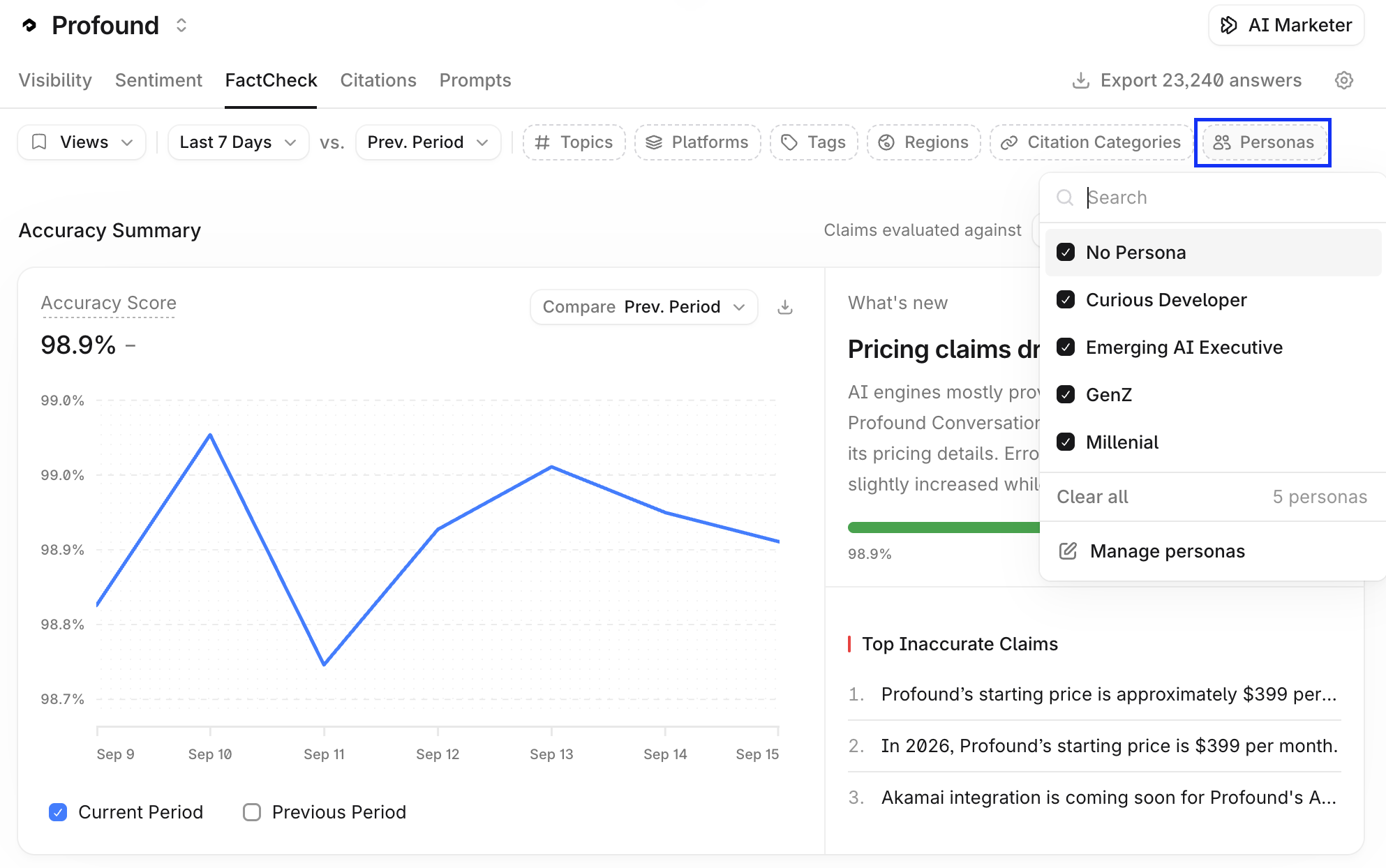
Filtering by Persona applies to Sentiment and FactCheck data as well, if you have at least one Persona configured. Access the filter in the top filters bar in the Sentiment and Factcheck tabs.
Learn more about filtering and interpreting data in 📄 Interpret Answer Engine Insights v2.