Prompt Answers
Last updated: April 19, 2026
The Prompt Answers node retrieves raw prompt-level answers from Profound for a selected brand category. Use this step when you want to analyze the actual answers generated by AI systems for the prompts you track—along with metadata such as the prompt text, model responses, mentions, themes, citations, and more.
This node is useful for Agents involving answer audits, competitive tracking, QA testing, sentiment analysis, clustering, or generating summaries from real AI outputs.
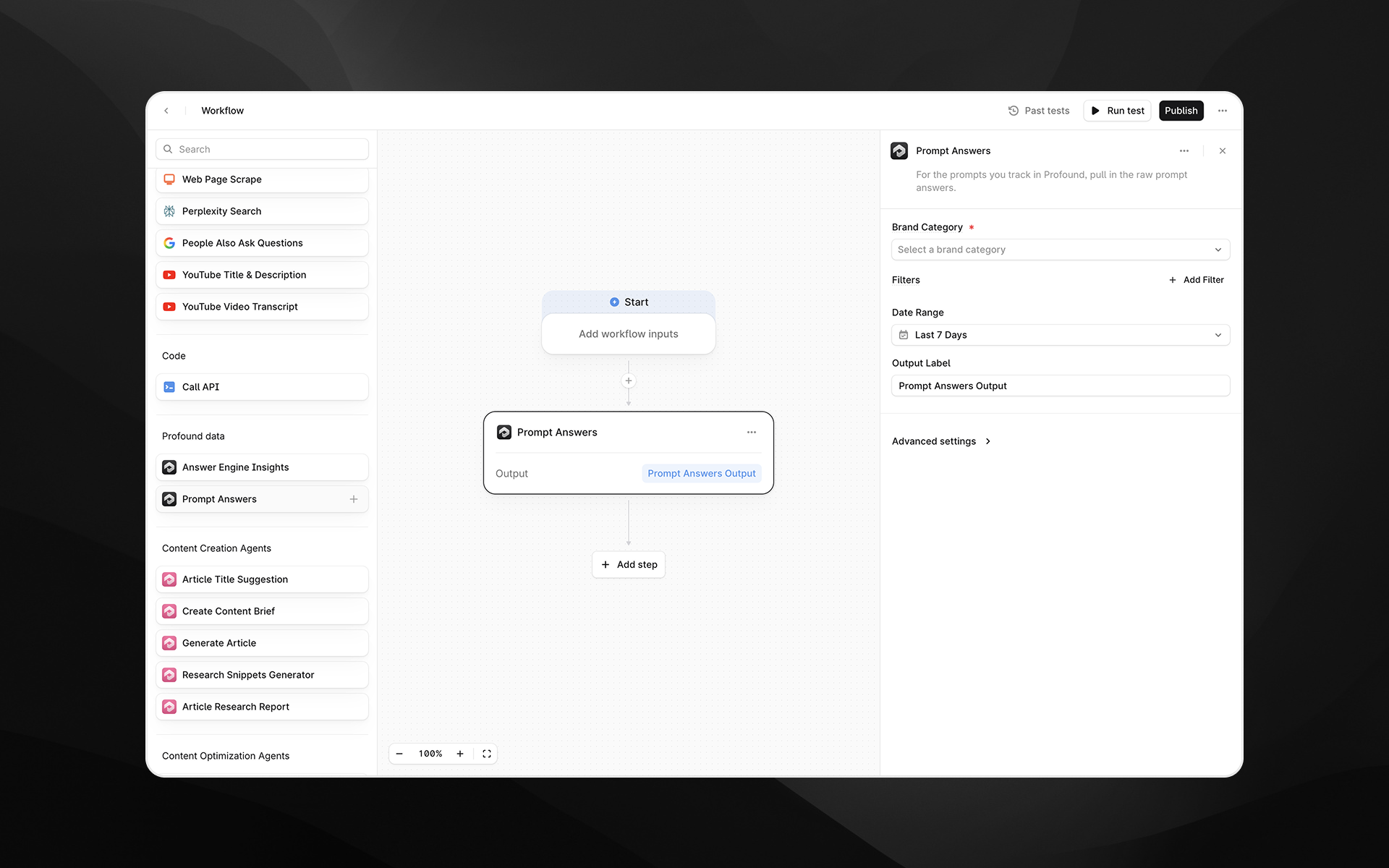
See this document for additional instructions on adding this node to an Agent, and this document for a full list of available nodes.
When to use this node
Use Prompt Answers for tasks such as:
Reviewing the raw answers AI systems generate for your tracked prompts
Identifying themes, issues, or opportunities in AI-generated answers
Analyzing changes in answers over time or across regions, models, or prompt types
Feeding real prompt-and-answer pairs into downstream LLM steps for summarization or quality scoring
Detecting competitive mentions or citation patterns in real answers
Node configuration
Brand Category (required)
Select the brand category whose prompt answers you want to retrieve.
A brand category corresponds to the grouping of prompts and brands you’ve configured in Profound.
Only one category can be selected per node.
Filters (optional)
Filters allow you to refine which answers are included in the output.
Click Add Filter to configure:
Field
Choose the field you want to filter by. Available fields include:
Created At
Prompt
Mentions
Prompt Type
Response
Citations
Themes
Topic
Region ID
Model ID
Hostname
URL
Root Domain
Path
Tag ID
(Your configuration may include additional fields depending on your Profound data.)
Operator
Operators vary by field but commonly include is, contains, or other comparison options.
Value
Enter the value to filter by. You can:
Paste a static value (e.g., a UUID, host name, or keyword), or
Insert a dynamic value using
/, referencing earlier steps or Agent inputs
Multiple filters can be stacked to further refine the dataset.
Date Range (required)
Select the time window for retrieving answers.
Examples: Last 7 Days, Last 30 Days, or other ranges your Profound configuration supports.
Only answers created within this range will be returned.
Output Label (required)
Provide a descriptive name for the output. This becomes the variable used to reference the results in subsequent Agent steps.
Examples:
prompt_answersbrand_prompt_dataraw_answers_output
Advanced settings
Expand Advanced settings to configure:
Limit
Set the maximum number of answers to return.
This is particularly useful when:
You want a sample of recent answers
You are passing large answer content into LLM steps
You want to reduce processing time
Example: 10 returns only the first 10 answers matching your filters and date range.
Output
The Prompt Answers node returns structured data for each answer, including fields such as:
Prompt text
Raw response
Mentions and citations
Prompt type
Themes or topics
Created timestamp
Associated metadata (region, model, domain, etc.)
The output can be consumed by:
Prompt LLM nodes
Scoring or classification Agents
Reporting and QA pipelines
Any transformation or extraction step
Example usage
1. Summarize AI-generated answers for a brand category
Add a Prompt Answers node.
Select the appropriate Brand Category.
Set the Date Range to the last 7 days.
Add a Prompt LLM step:
Summarize the key themes and trends across the following AI-generated answers:

{{prompt_answers.output}}
2. Identify where competitors are mentioned
Add a filter on Mentions containing a competitor name.
Limit results to a manageable number (e.g., 20).
Send the output to an LLM step for deeper analysis:
Analyze how competitors are being described in these answers and summarize patterns.3. Extract answer quality signals
Add a Prompt Answers node for a specific prompt type (e.g., “Brand Overview”).
Use filters to focus on a particular model or region.
Send the results into a scoring LLM prompt to flag inaccuracies or opportunities.
Best practices
Use filters to target specific models, regions, or prompts for cleaner downstream processing.
Set a Limit when working with high-volume categories to keep Agents efficient.
Use clear output labels so your Agent logic stays easy to understand.
Combine with Answer Engine Insights for complementary analysis of both raw answers and aggregated metrics.
Troubleshooting
No answers are returned
Expand the Date Range.
Remove or loosen filters.
Confirm that prompt activity exists in the selected brand category.
Verify that prompts have been in the system for at least 24-48 hours. New prompts typically take 24-48 hours to generate their initial set of data, as the system collects information on a daily cycle.
Output is too large or difficult to analyze
Add filters (e.g., Prompt Type, Region ID).
Lower the Limit.
Pass the results through a Prompt LLM node to cluster or summarize them.
Filter values aren’t applying
Use
/to insert variables rather than typing placeholder names manually.