Keyword searches and lists
Last updated: June 11, 2026
There are several ways to query the Prompt Volumes dataset. Profound scans prompts for keywords and generates data points when matches are found. Effective keyword creation and management are essential for producing meaningful query results.
How to use keywords to query Prompt Volumes data
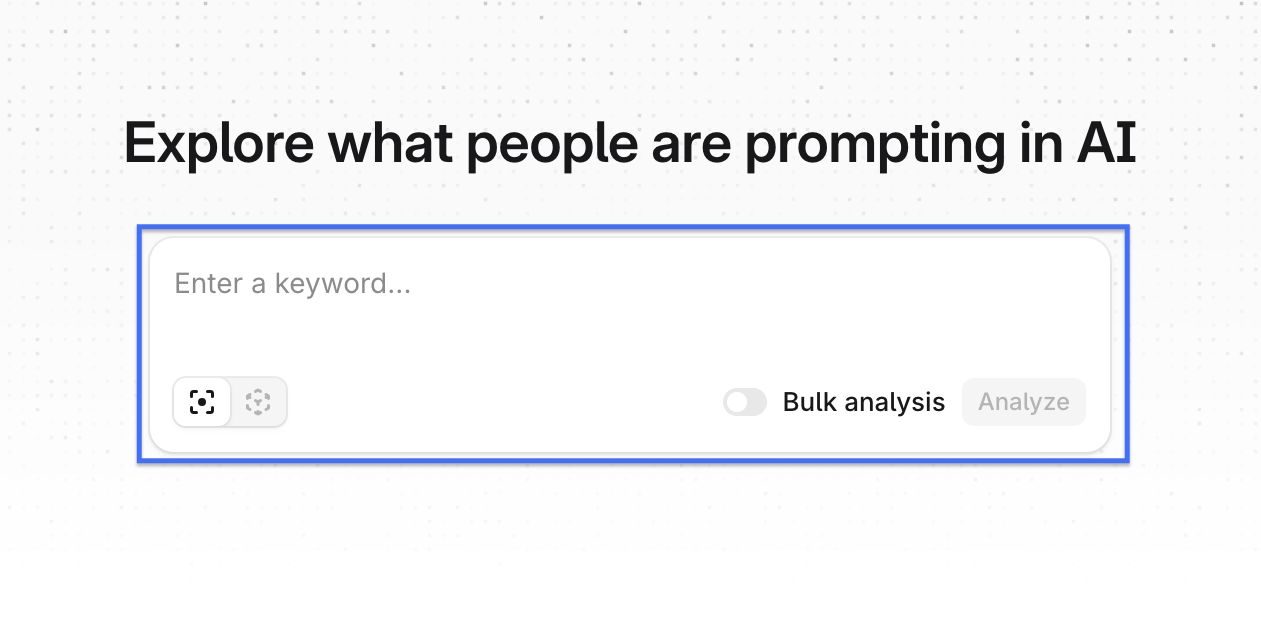
The Prompt Volumes search bar is the fastest way to query the Prompt Volumes dataset. Enter a keyword into the search bar and click Analyze to go directly to the query results.
Bulk Analysis
The Bulk Analysis option lets you input multiple keywords into the search and run queries against the dataset using all of them at once.
Phrase matching
Profound supports two matching modes. Exact matching returns only prompts containing the exact keyword string. Phrase matching scans for prompts containing the keywords in any order.
For example, if the keyword is "ai tools," exact matching excludes a prompt like "what tools are good in the ai space?" With phrase matching enabled, that prompt appears in the results since both "ai" and "tools" are present.
How to create keyword lists
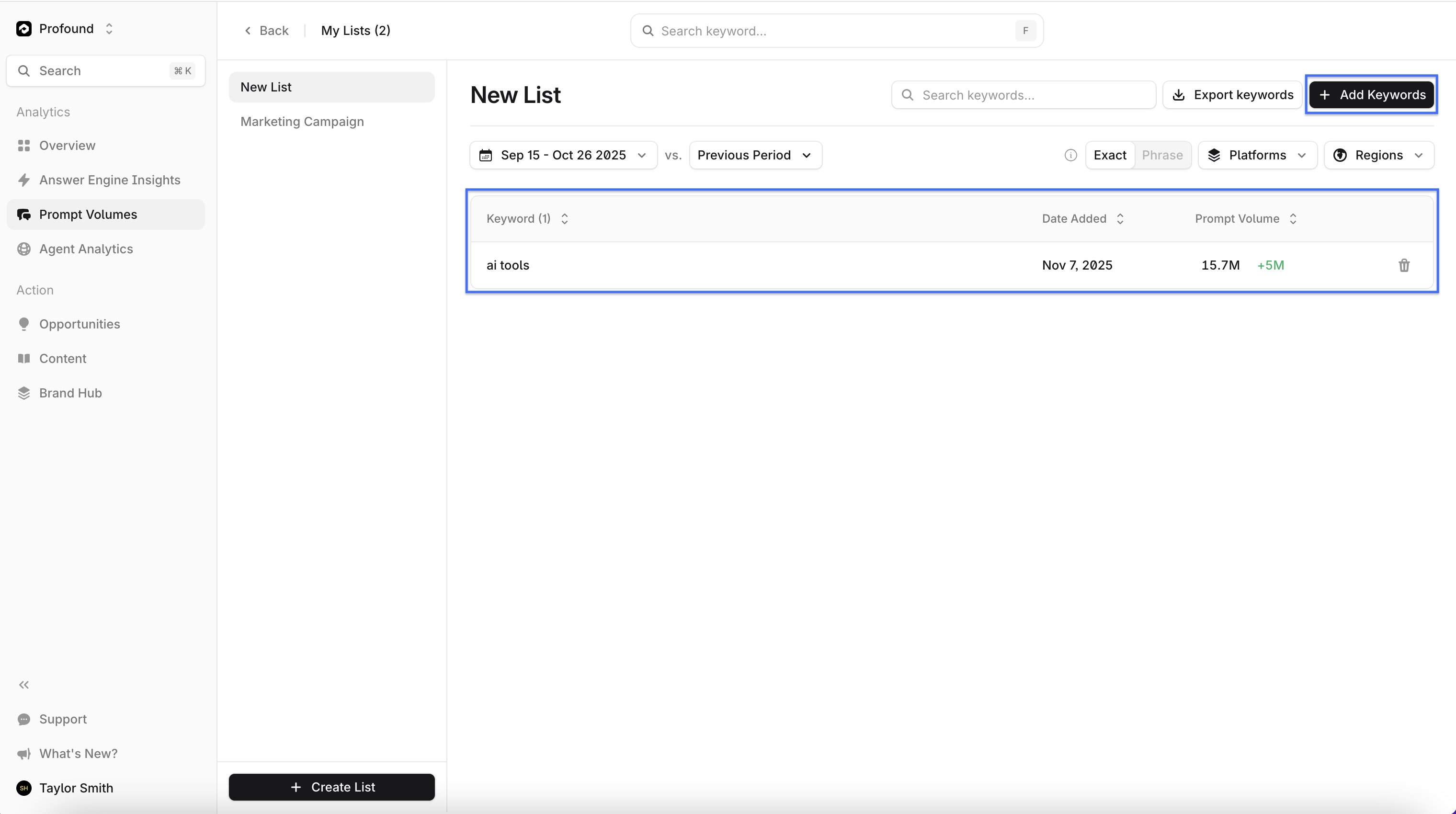
Group related keywords into lists to track how specific initiatives or strategies perform across answer engines. This lets you analyze the collective performance of a set of terms.
From the Prompt Volumes landing page, select + Create List to create a new list.
Add or remove keywords directly from the list view. Click any keyword in the list to view its performance within the Prompt Volumes dataset.