Getting started
Last updated: June 16, 2026
Profound automatically classifies eligible prompts for Sentiment analysis. Follow these steps to verify your setup and start using the data.
Step 1: Set the date range and establish a baseline
Go to Answer Engine Insights and select the Sentiment tab in the top navigation. Use the date range filter to select your monitoring window. The Prev. Period dropdown controls your comparison baseline.
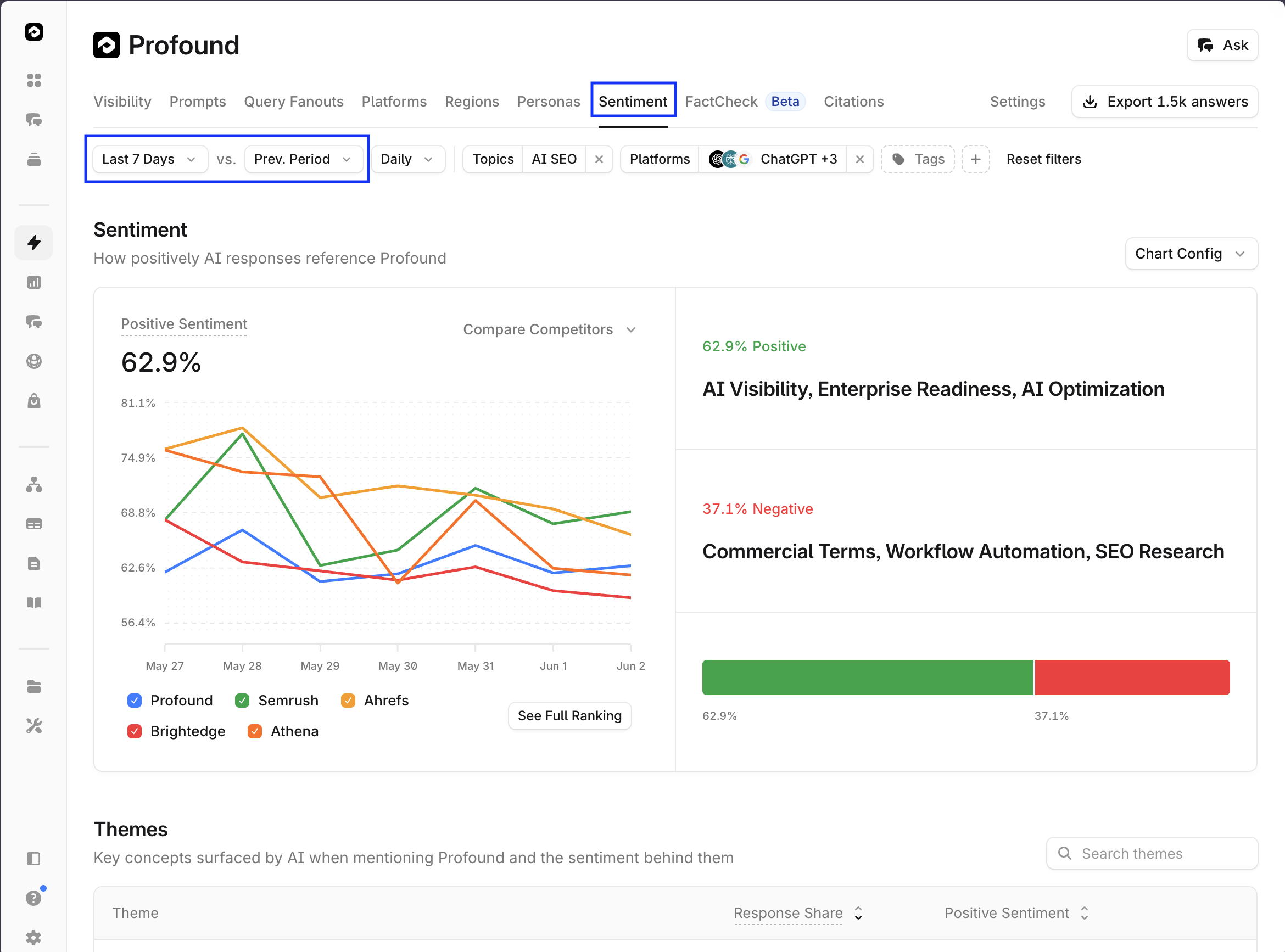
Before optimizing, note your current positive sentiment percentage and your top positive and negative themes. Use the available filters (Topics, Platforms, Regions, and so on) to slice the data and identify where sentiment varies most across your setup.
Step 2: Investigate and diagnose
Use the drill-down flow to investigate: start from your overall sentiment score, navigate into the themes driving it, then into the attributes within each theme, then into the specific claims behind those attributes included in the content of the cited pages.
When investigating a theme, open the cited pages to see the exact content Profound surfaced and determine whether a content fix or a product change is the right response.
General diagnosis advice
Negative themes with rising mention counts: investigate first
Positive themes with rising counts: note and reinforce
Themes trending down: identify what changed
A single negative mention with no broader trend: likely noise, do not act on it
Step 3: Take action to improve your sentiment score
Review the Negative Sentiment Drivers table. It lists the most frequently cited web pages that include top negative claims about your brand. Take action directly from the table: clicking Draft Outreach in the Suggested Action column for a citation source builds an Agent to draft outreach for that source. Run the Agent as is, or customize it using the Agent Assistant.